
Sponsored

citizen

Well-Known Member
First Name
Darren
Joined
Sep 1, 2021
Threads
16
Messages
395
Reaction score
439
Location
Orange County, CA
Vehicles
R1S, 911, RX350h
Occupation
Designer
Clubs
 
Due to insurance scammers, terrible drivers (captured via my FIL's car the week after they took delivery), and criminals driving recklessly leaving a crime scene (was hit while waiting at a light in San Francisco), I've always been a stickler about having dashcams installed when driving.

Brought a dashcam with me when picking up my FIL's car earlier in the year and had it mounted even before we left the dealership. For our R1S, one of the first two items I ordered was the 90-degree angle adapter and a Samsung memory stick. Made sure it was installed and Drive Cam was running before I left the service center.

But due to the low resolution of the Rivian cameras as detailed by @opnwide in this extremely helpful thread, I always knew I would be adding an aftermarket camera to augment Rivian’s system.

Thanks to this helpful thread and @opnwide's video, I was able to jerry-rig a mirror-tap for the Viofo A139 Pro front + rear dashcam and run the rear camera wire cleanly to the liftgate. Below is a write-up of what I did, hopefully, you'll find it helpful.

Disclaimer: I'm not responsible for anything that happens to you or your property. Be careful when working with the trim pieces near airbags. And as always, watch out for live / hot wires.

Mirrortap:
Whereas radar detectors seem to have a number of mirrortap options, there doesn't seem to be an equivalent if you just want a USB-C connection. For other vehicles, I've mirrortapped with a Dongar adapter (not available for the Rivian, though I did wonder if another brand's 10-pin Type H would work) or tapped the fusebox. Due to reports of Rivian not using standard size fuses I zeroed in on the mirrortap option early on.

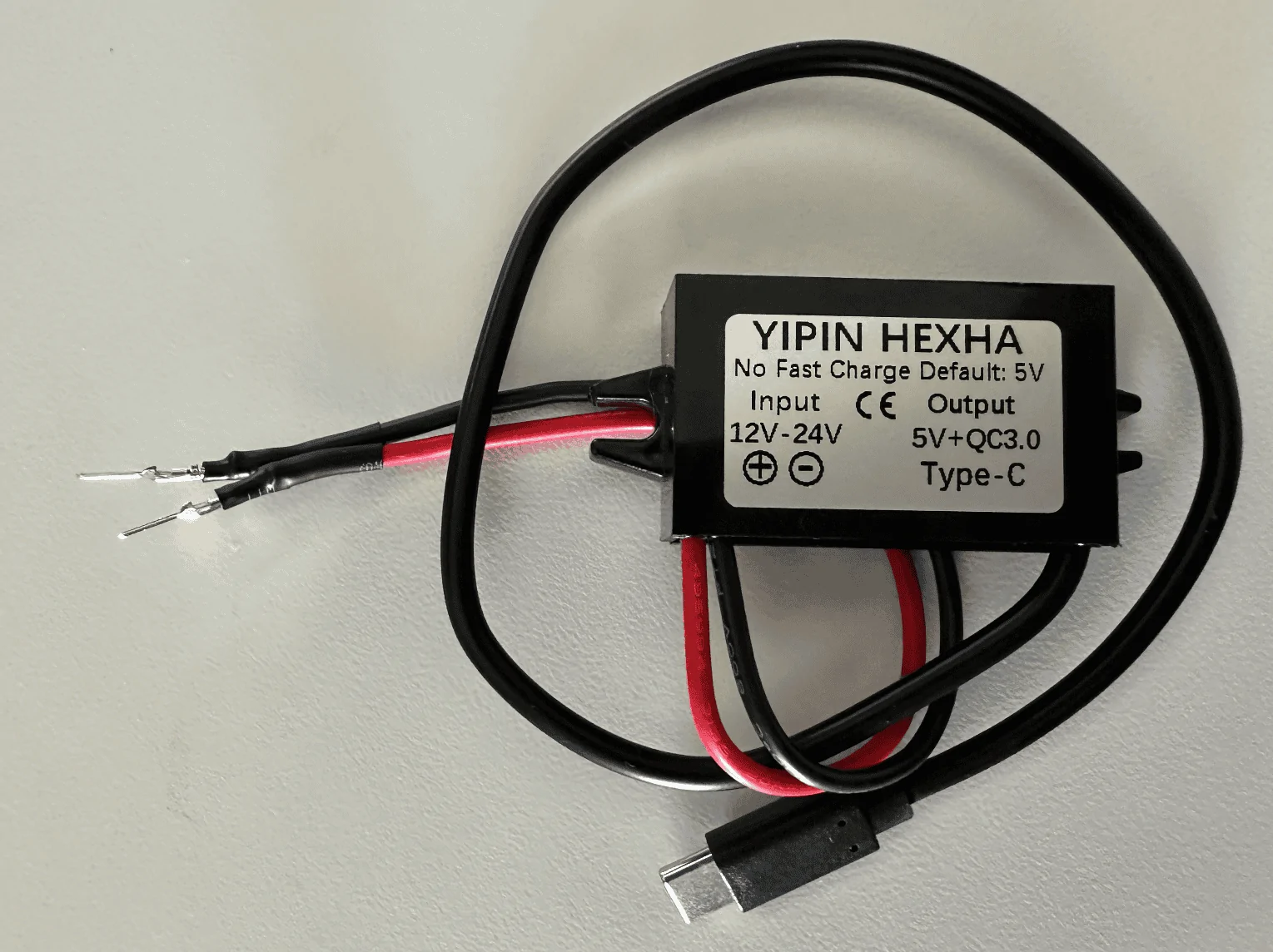
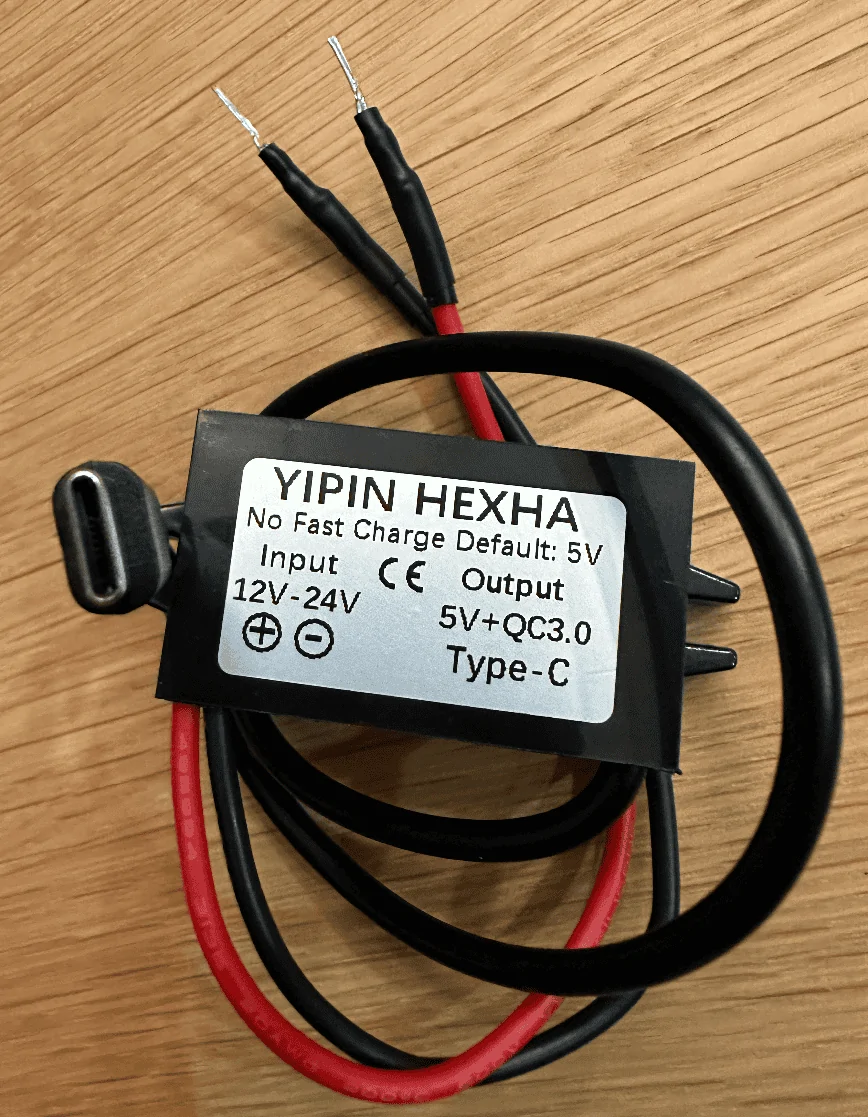
Used the following two items and some heat shrink tubing for my mirrortap:
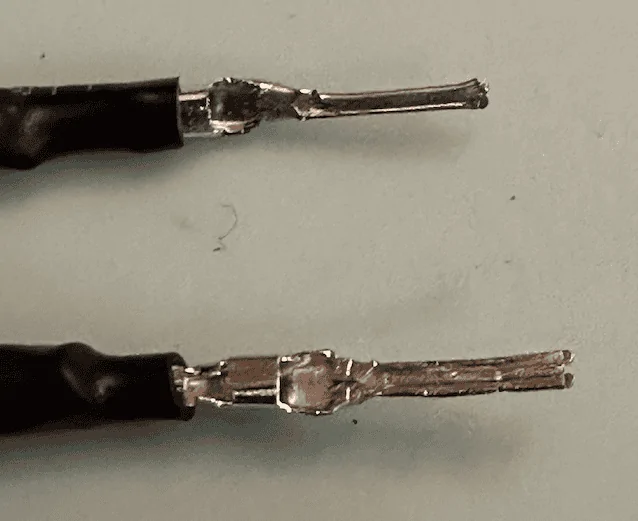
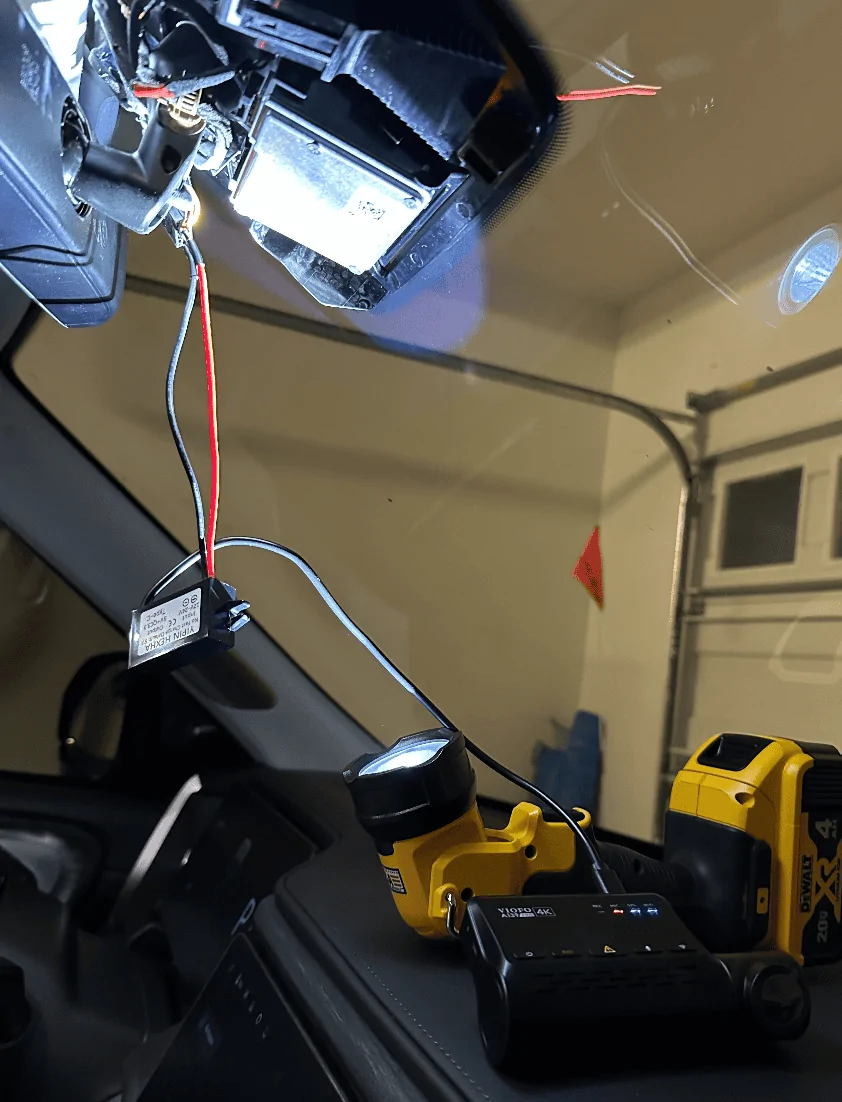
How everything looked like after I crimped the male connector to the buck module:
Rivian R1T R1S Front + rear dashcam installed via  mirror tap (DIY tutorial) Screenshot 2023-08-27 at 11.16.01 PM


After some unsuccessful attempts at tapping the rear of the molex connector, I ended up flattening the pins:
Rivian R1T R1S Front + rear dashcam installed via  mirror tap (DIY tutorial) Screenshot 2023-08-27 at 11.15.40 PM

Rivian R1T R1S Front + rear dashcam installed via  mirror tap (DIY tutorial) Screenshot 2023-08-27 at 11.41.16 PM


Tapping the mirror assembly:
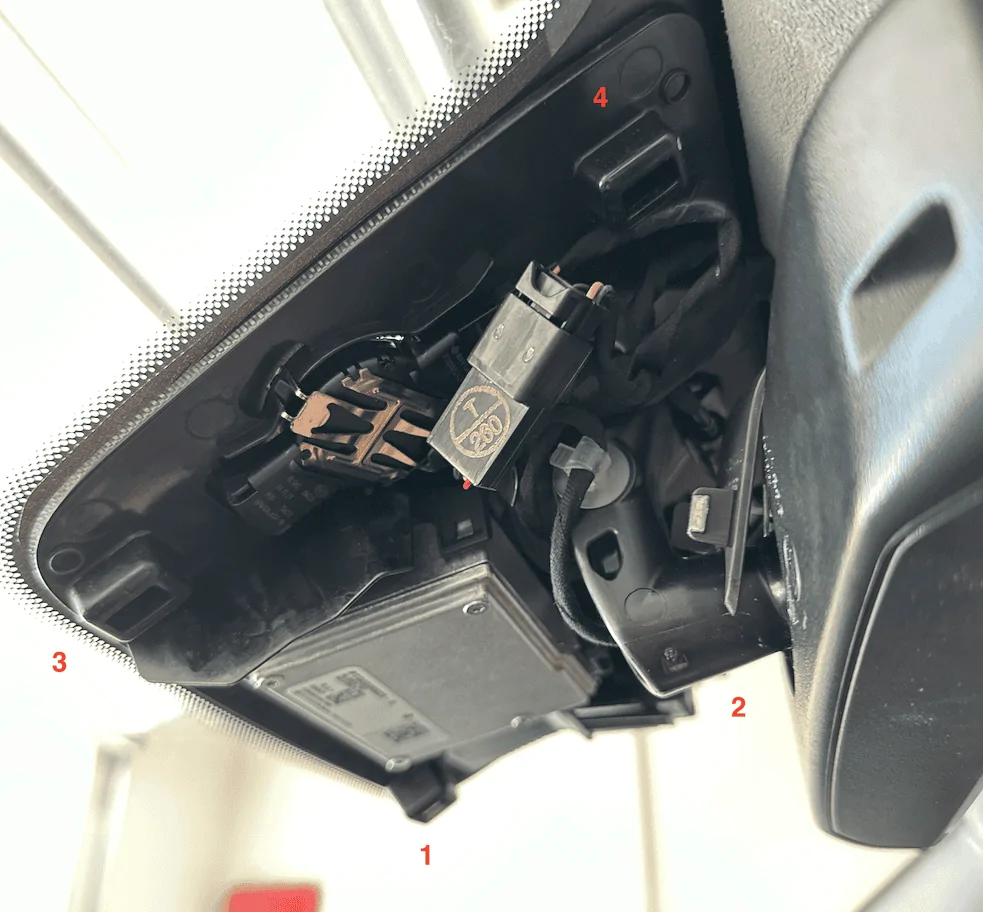
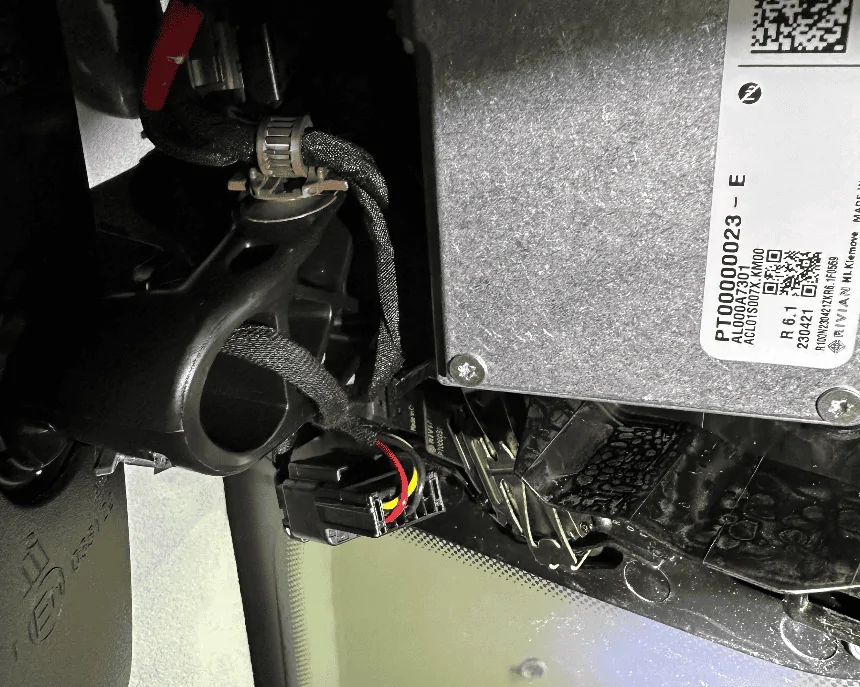
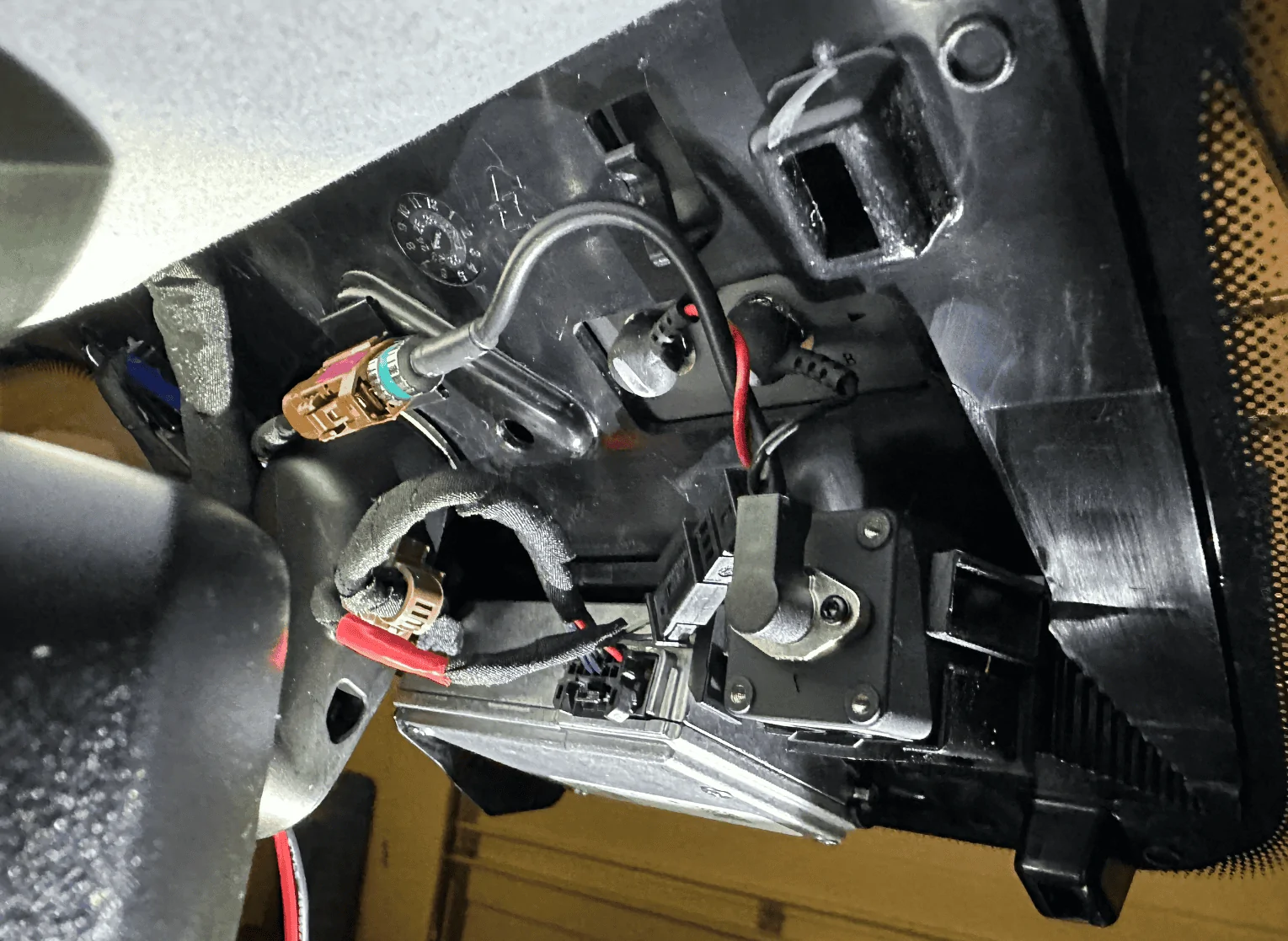
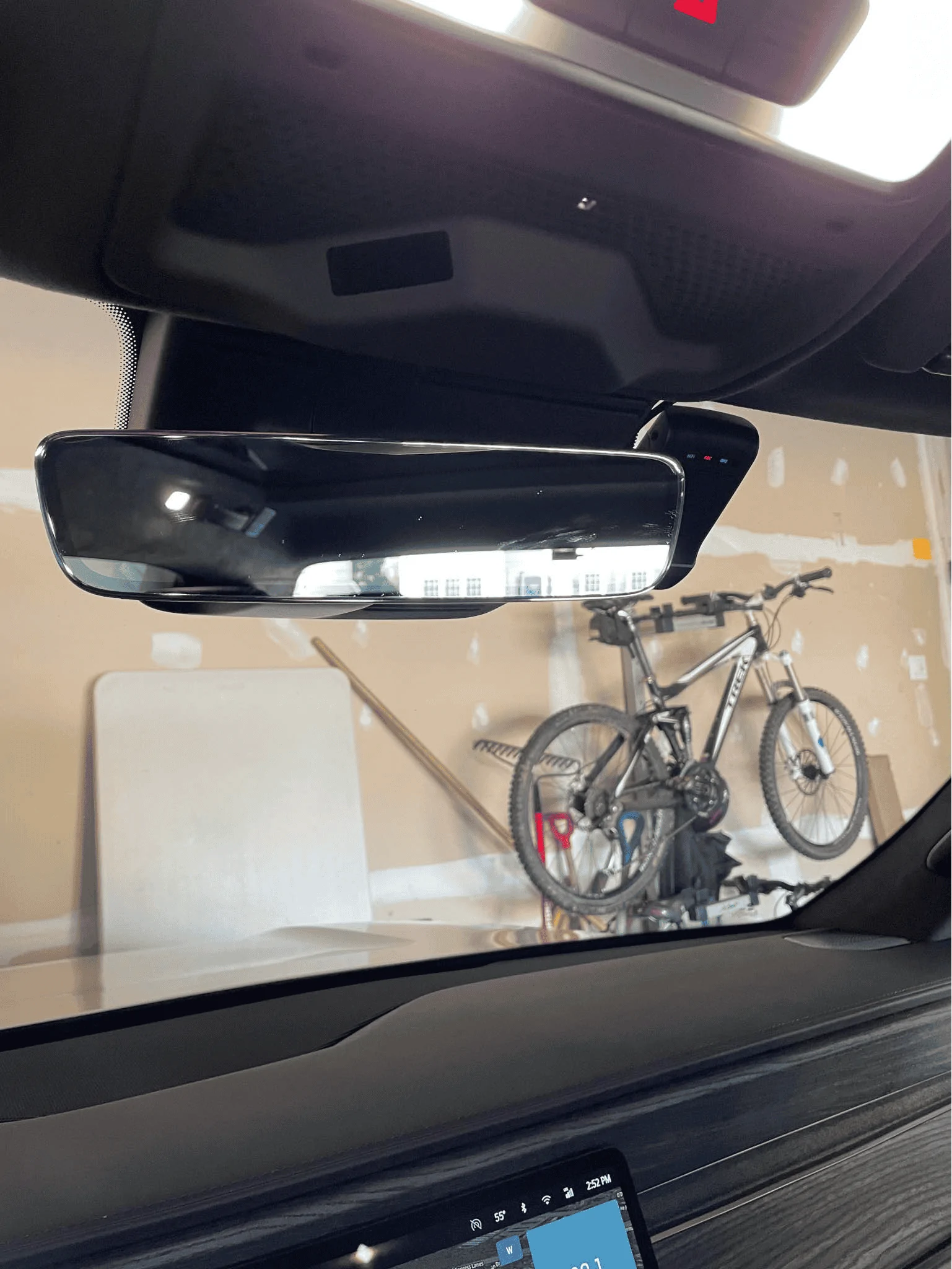
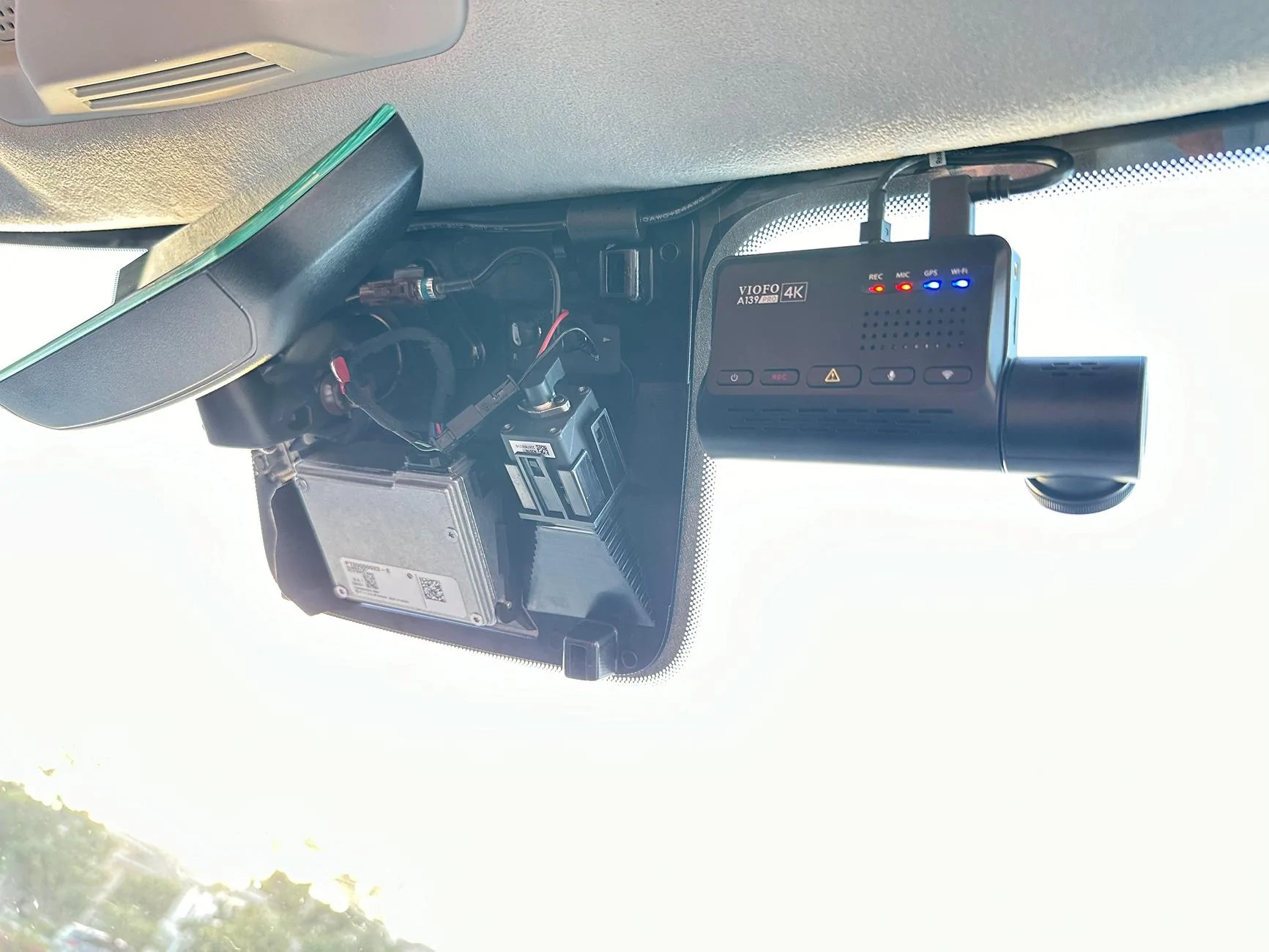
Using a pry tool, I would suggest removing the housing cover in the order as labeled in the photo. The passenger side has more room to work with. Note that the front of the enclosure has a cut out which might make it more prone to damage, so I would suggest focusing on prying from the side. In this view, you can clearly see the molex connector you'll be tapping (labeled T / 260). Note that there have been numerous reports of the mirror falling off so just be careful when working in this area.
Rivian R1T R1S Front + rear dashcam installed via  mirror tap (DIY tutorial) Screenshot 2023-08-27 at 11.22.25 PM


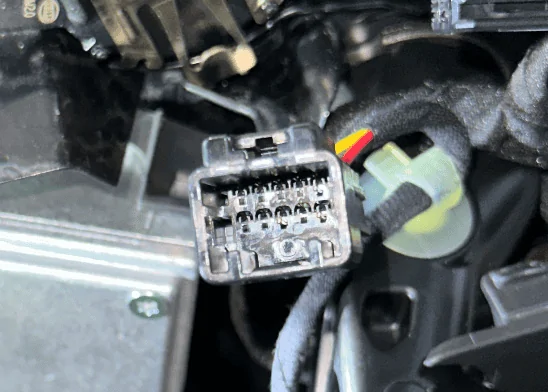
Better shot of the back of the connector we'll be tapping, if the yellow wire is overlapping, disconnect the connector and reorient it so you get as clean of a setup as possible:
Rivian R1T R1S Front + rear dashcam installed via  mirror tap (DIY tutorial) Screenshot 2023-08-27 at 11.26.07 PM


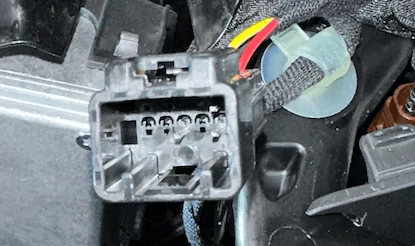
If Dongar or anyone else wants to offer a productized connector, here's what the connector looks like, there are a few 10-pin connectors used by the other car manufacturers, wasn't sure which mapped closest to the one Rivian uses:
Rivian R1T R1S Front + rear dashcam installed via  mirror tap (DIY tutorial) Screenshot 2023-08-27 at 11.30.02 PM
Rivian R1T R1S Front + rear dashcam installed via  mirror tap (DIY tutorial) Screenshot 2023-08-27 at 11.31.27 PM


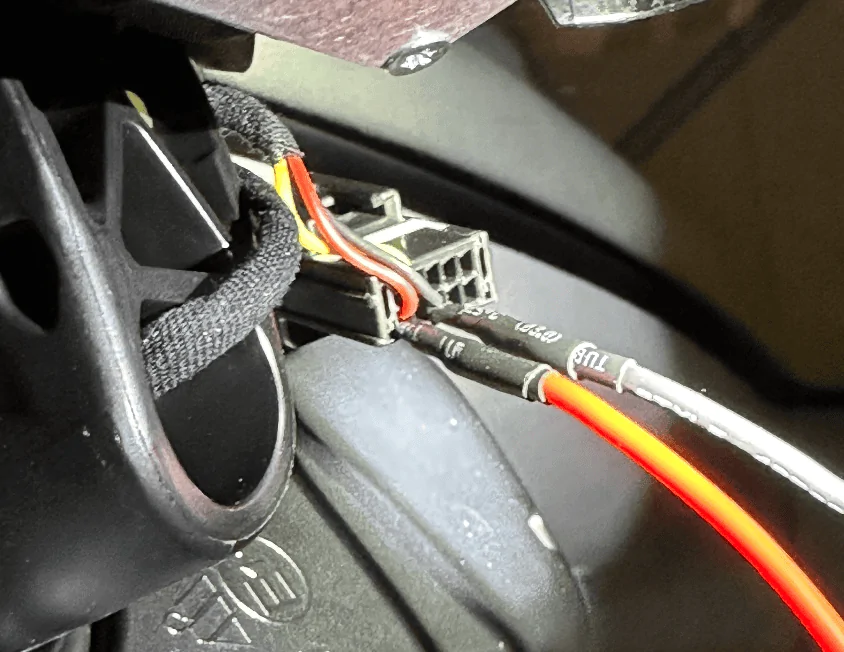
Tap red to red and black to black, you might need to attempt it a few times to get it seated correctly and drawing power:
Rivian R1T R1S Front + rear dashcam installed via  mirror tap (DIY tutorial) Screenshot 2023-08-27 at 11.34.04 PM


Test your connection to make sure everything is working as expected:
Rivian R1T R1S Front + rear dashcam installed via  mirror tap (DIY tutorial) Screenshot 2023-08-27 at 11.35.14 PM


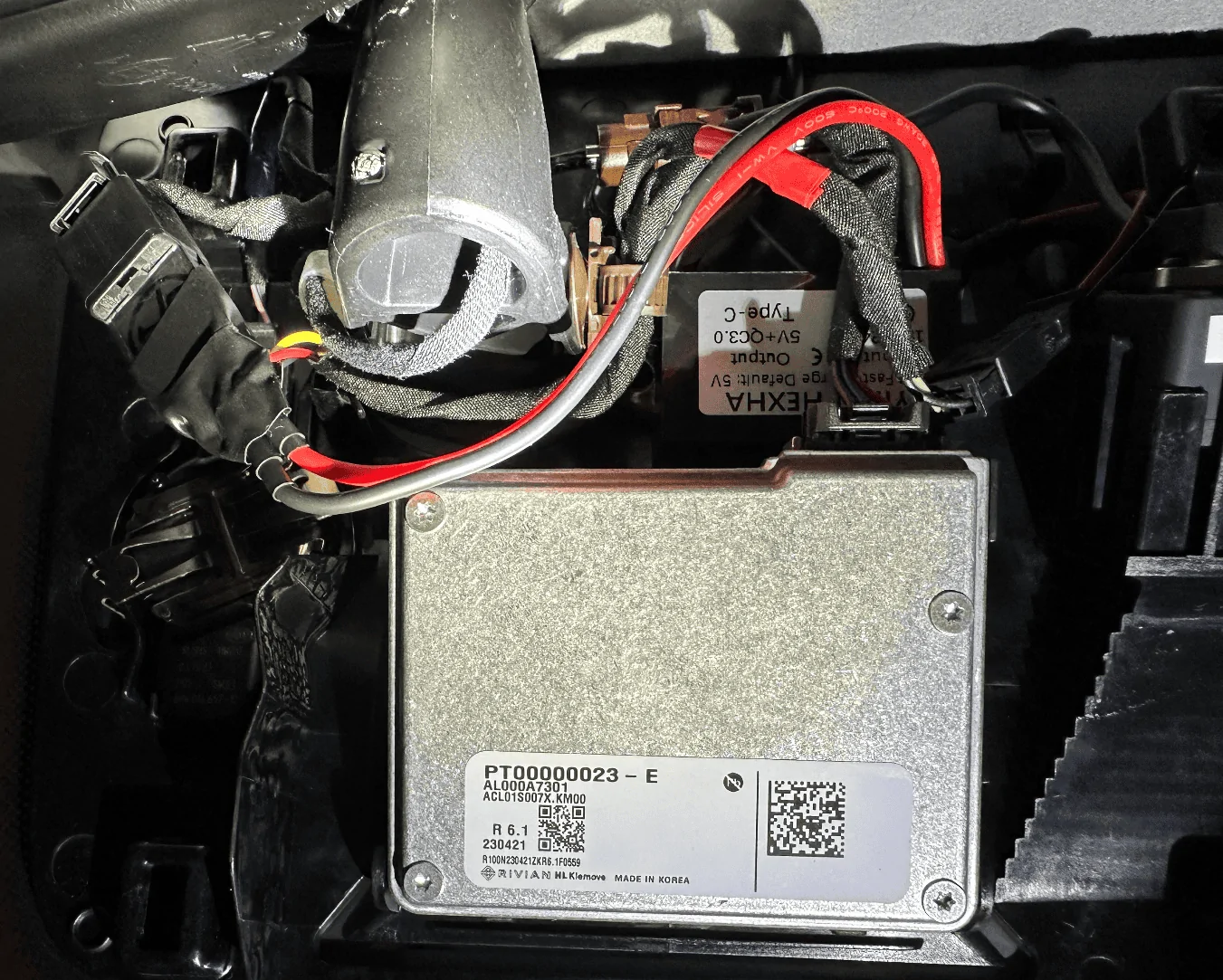
This is what the mirror housing looks like, there's a nice little void in the middle but don't touch the silver box, it's hot!
Rivian R1T R1S Front + rear dashcam installed via  mirror tap (DIY tutorial) Screenshot 2023-08-27 at 11.36.30 PM


Buck module all tucked in, also used some extra electrical tape around the molex tap to make sure it doesn't get unseated accidentally:
Rivian R1T R1S Front + rear dashcam installed via  mirror tap (DIY tutorial) Screenshot 2023-08-27 at 11.38.05 PM


Now just route the USB-C wire up towards the roof and reattach the housing cover when you feel like everything is working as expected. Onto the next step.

Wiring up the rear camera:
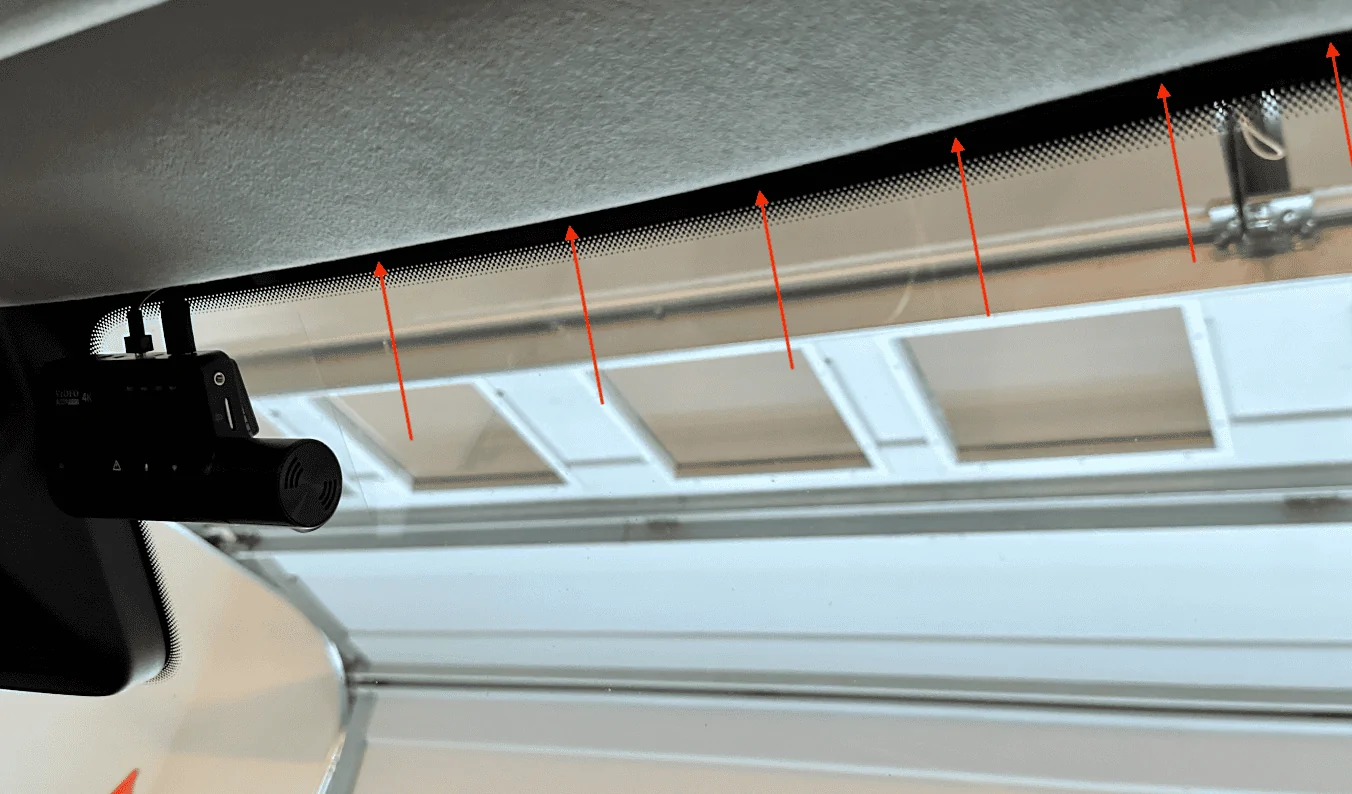
The process is super easy in the front and gets tougher as you work your way towards the rear. There's plenty of room at the top of the windshield so just run the cable until you hit the A-pillar:
Rivian R1T R1S Front + rear dashcam installed via  mirror tap (DIY tutorial) Screenshot 2023-08-27 at 11.43.32 PM


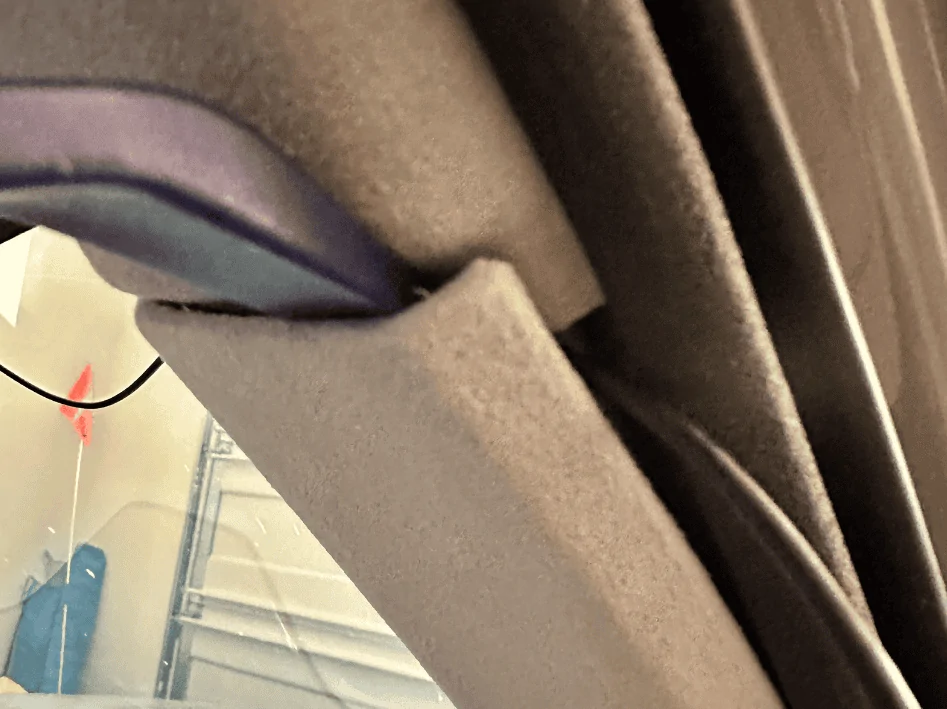
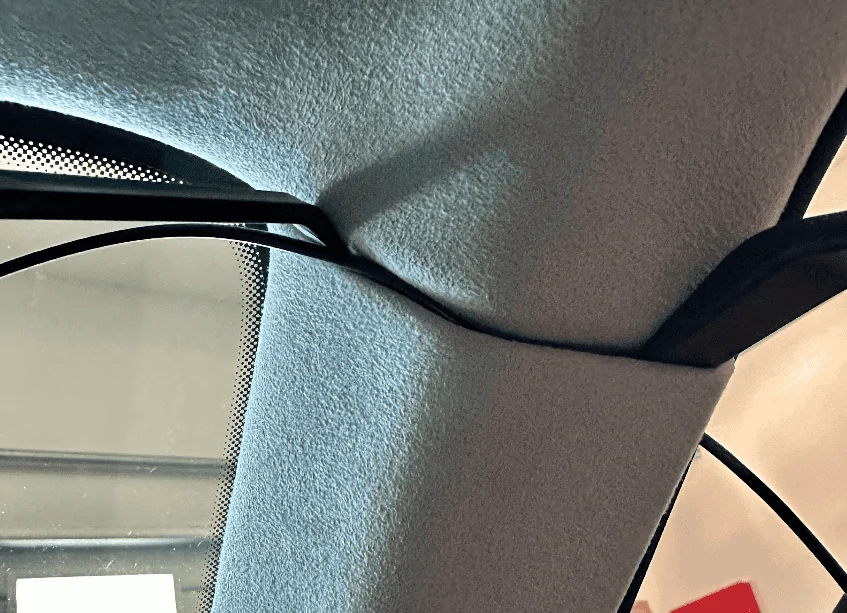
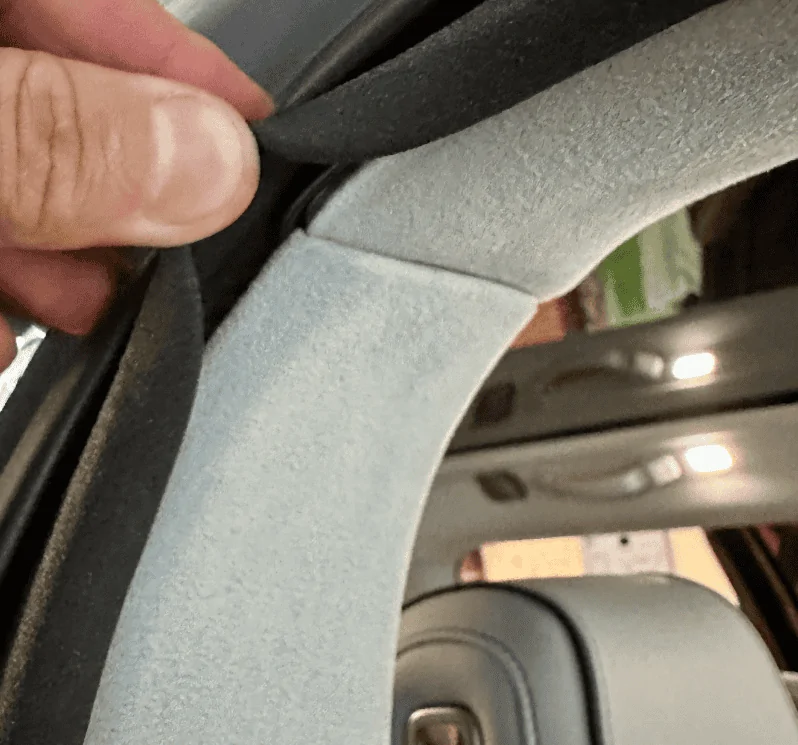
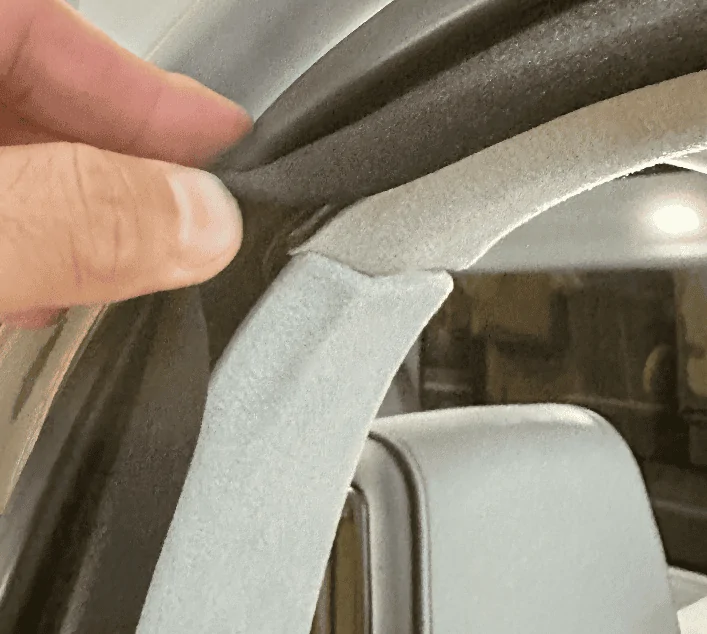
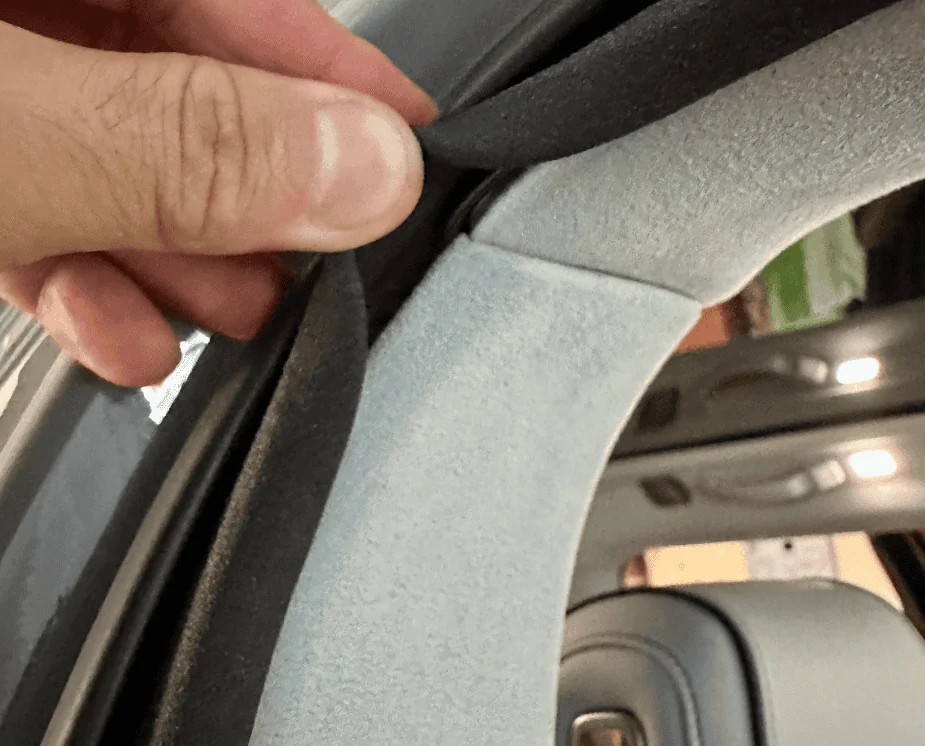
For all trim pieces, prying from under the weather seal makes life a little easier. At the A-pillar, lift up the seal and pry from there, you'll get plenty of leverage and will be able to open a large cavity to run the wire through.
Rivian R1T R1S Front + rear dashcam installed via  mirror tap (DIY tutorial) Screenshot 2023-08-27 at 11.46.39 PM

Rivian R1T R1S Front + rear dashcam installed via  mirror tap (DIY tutorial) Screenshot 2023-08-27 at 11.46.27 PM


Once the cable is deep behind the trim piece, run it up along the door seal to the B-pillar:
Rivian R1T R1S Front + rear dashcam installed via  mirror tap (DIY tutorial) Screenshot 2023-08-27 at 11.51.17 PM


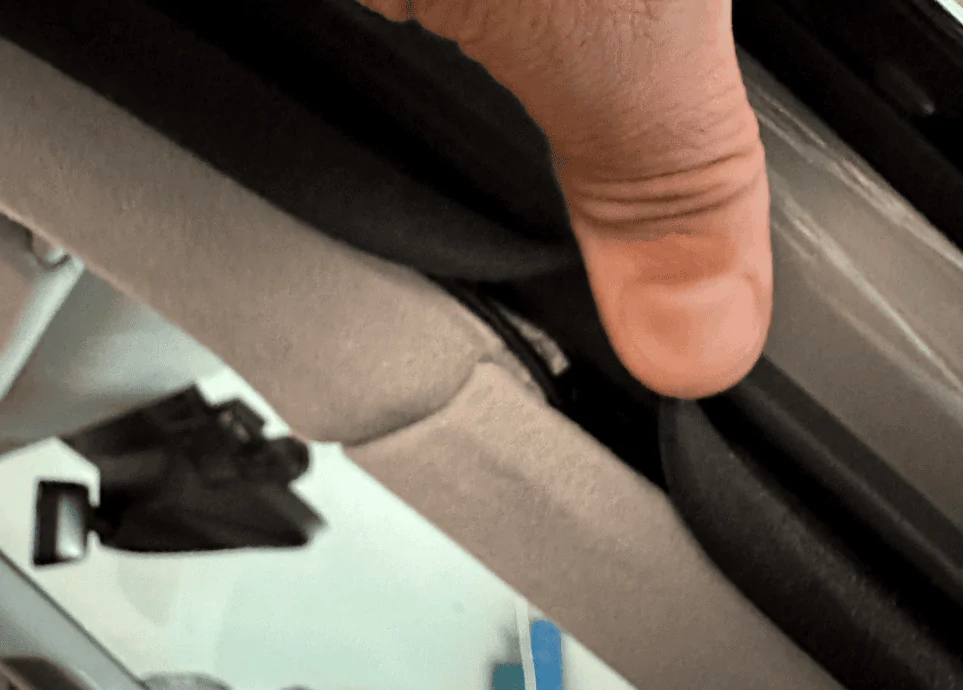
At the B-pillar, again work from the portion underneath the weather seal, I found that the bottom piece was easier to pull out than the top piece. You won't be able to pry the trim out as far as the A-pillar but it'll be enough to get the wire behind it. Once you've gotten the wire deep behind the B-pillar trim piece, run it up along the door seal to the C-pillar.
Rivian R1T R1S Front + rear dashcam installed via  mirror tap (DIY tutorial) Screenshot 2023-08-27 at 11.53.40 PM

Rivian R1T R1S Front + rear dashcam installed via  mirror tap (DIY tutorial) Screenshot 2023-08-28 at 12.23.26 AM


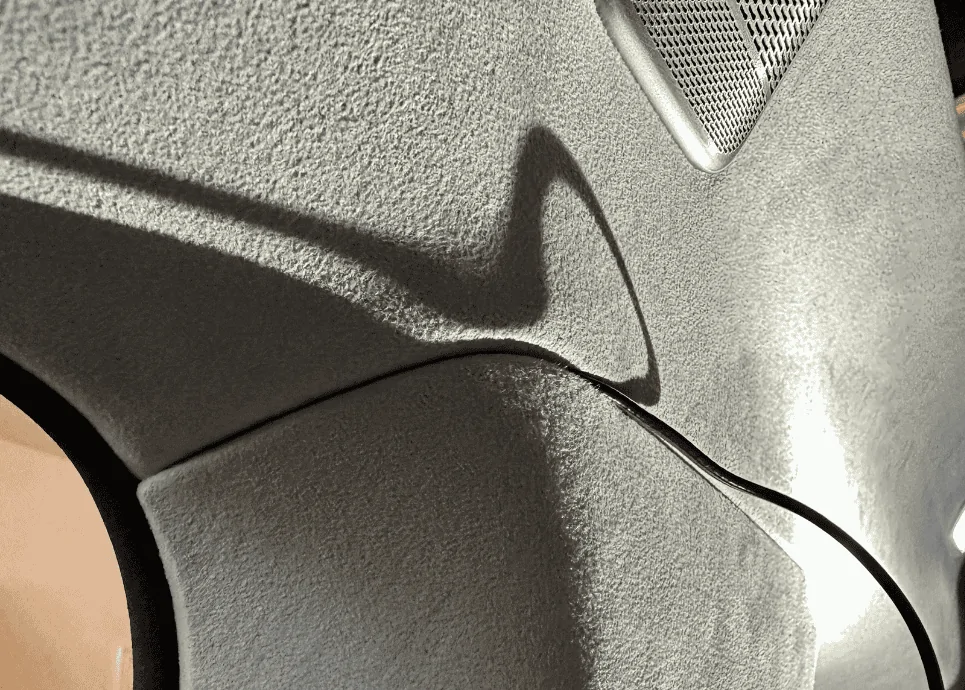
The C-pillar was similar if not a little tougher than the B-pillar, follow the same steps. Focus on the bottom trim piece and pulling from under the seal:
Rivian R1T R1S Front + rear dashcam installed via  mirror tap (DIY tutorial) Screenshot 2023-08-27 at 11.56.04 PM

Rivian R1T R1S Front + rear dashcam installed via  mirror tap (DIY tutorial) Screenshot 2023-08-28 at 12.23.47 AM


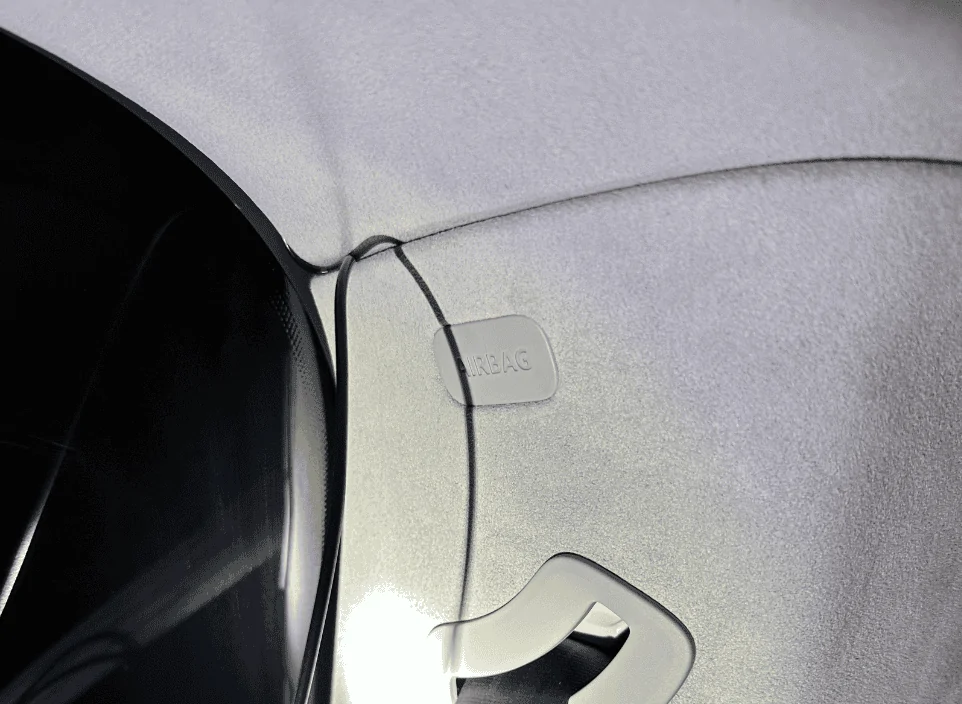
Run the wire up along the top of the rear passenger side window pane similar to what you did at the windshield. Then at the back of the R1S is where things get real fun. Note the airbag here.
Rivian R1T R1S Front + rear dashcam installed via  mirror tap (DIY tutorial) Screenshot 2023-08-27 at 11.58.08 PM


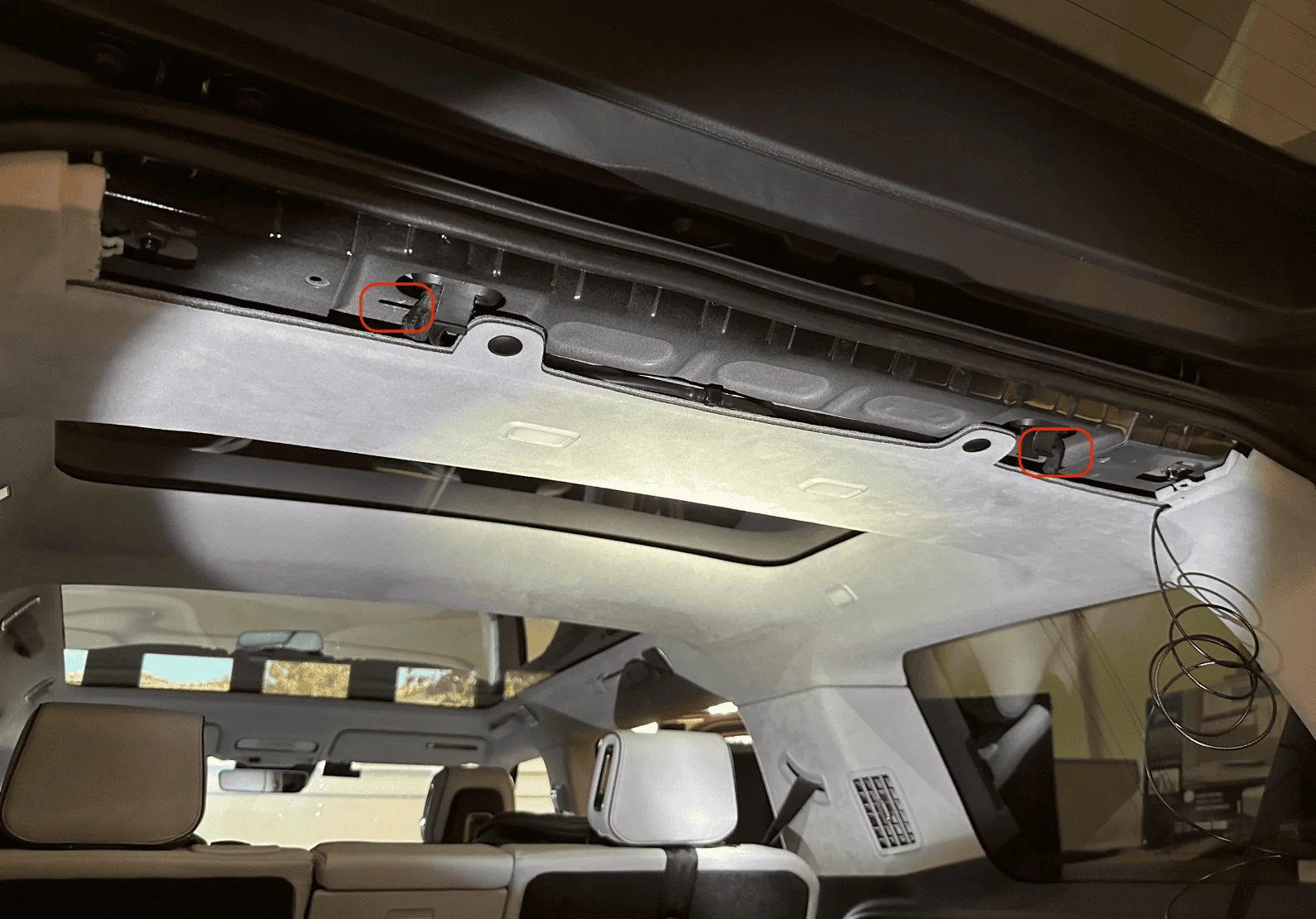
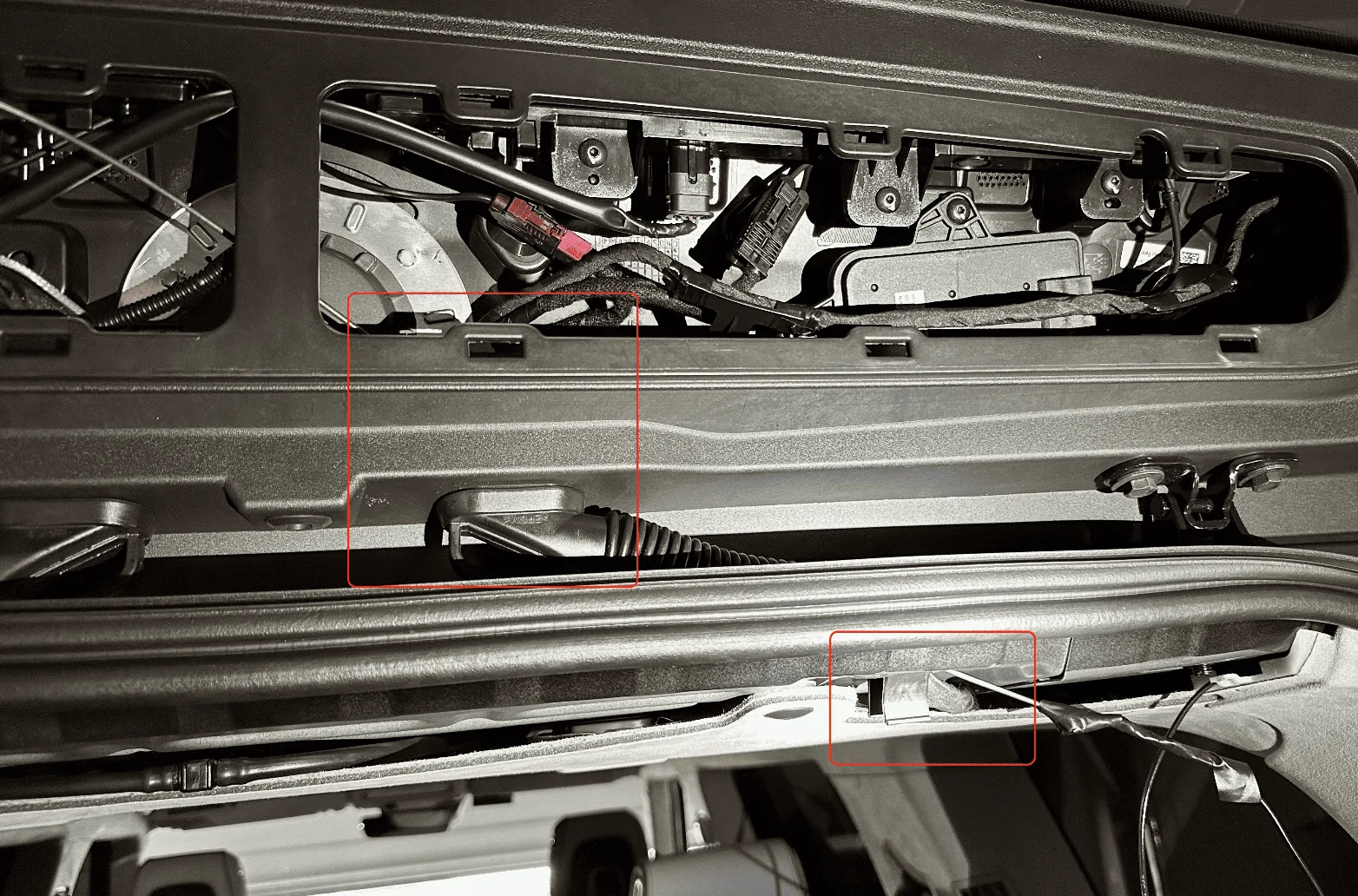
Remove the rear's top trim piece. There are two plastic tabs (circled in red) you'll need to be careful with, two more plastic tabs are towards the back that I found relatively easy to pull down, and the rest of the mounting points are just magnets:
Rivian R1T R1S Front + rear dashcam installed via  mirror tap (DIY tutorial) Screenshot 2023-08-27 at 11.58.42 PM


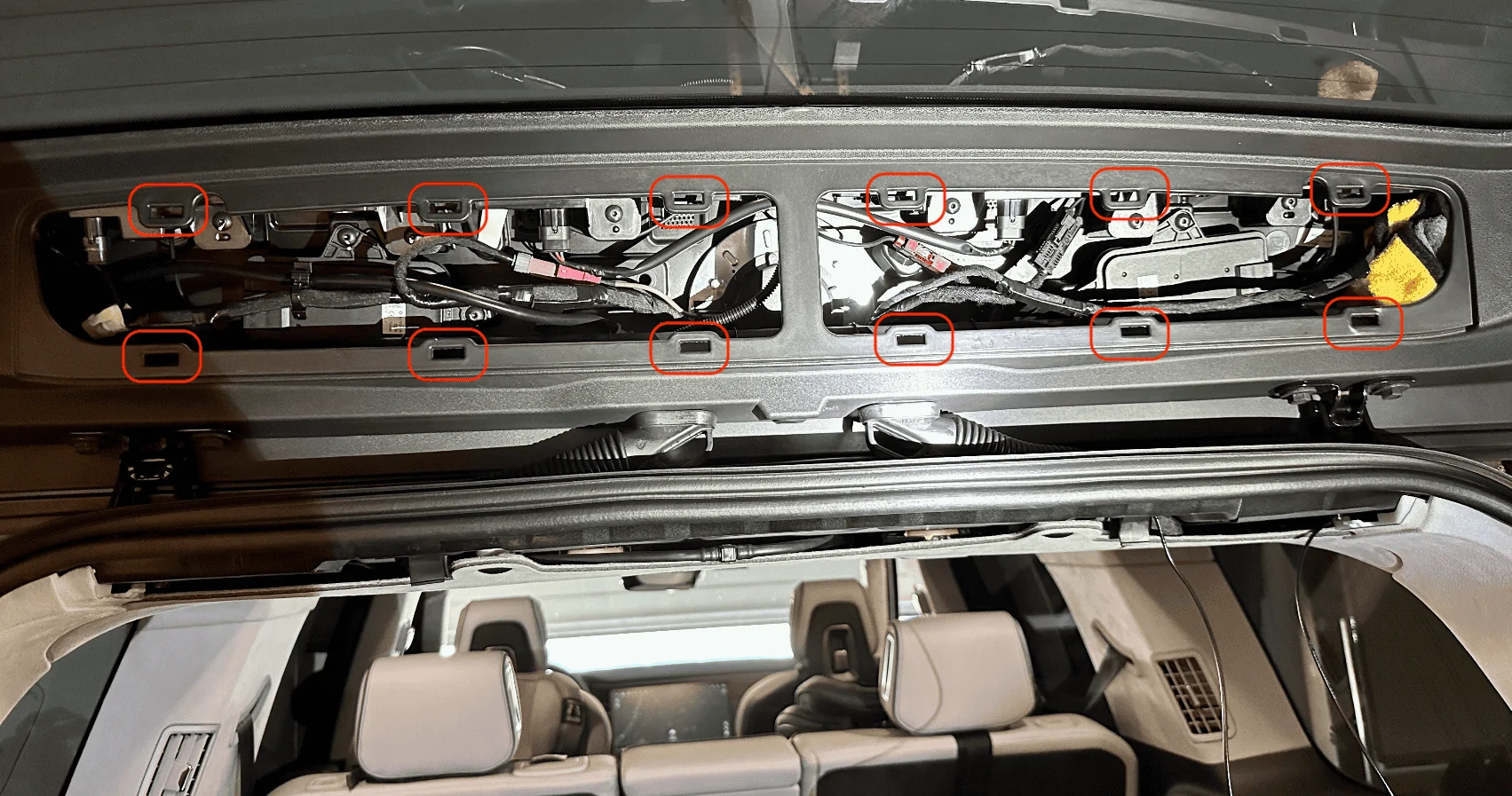
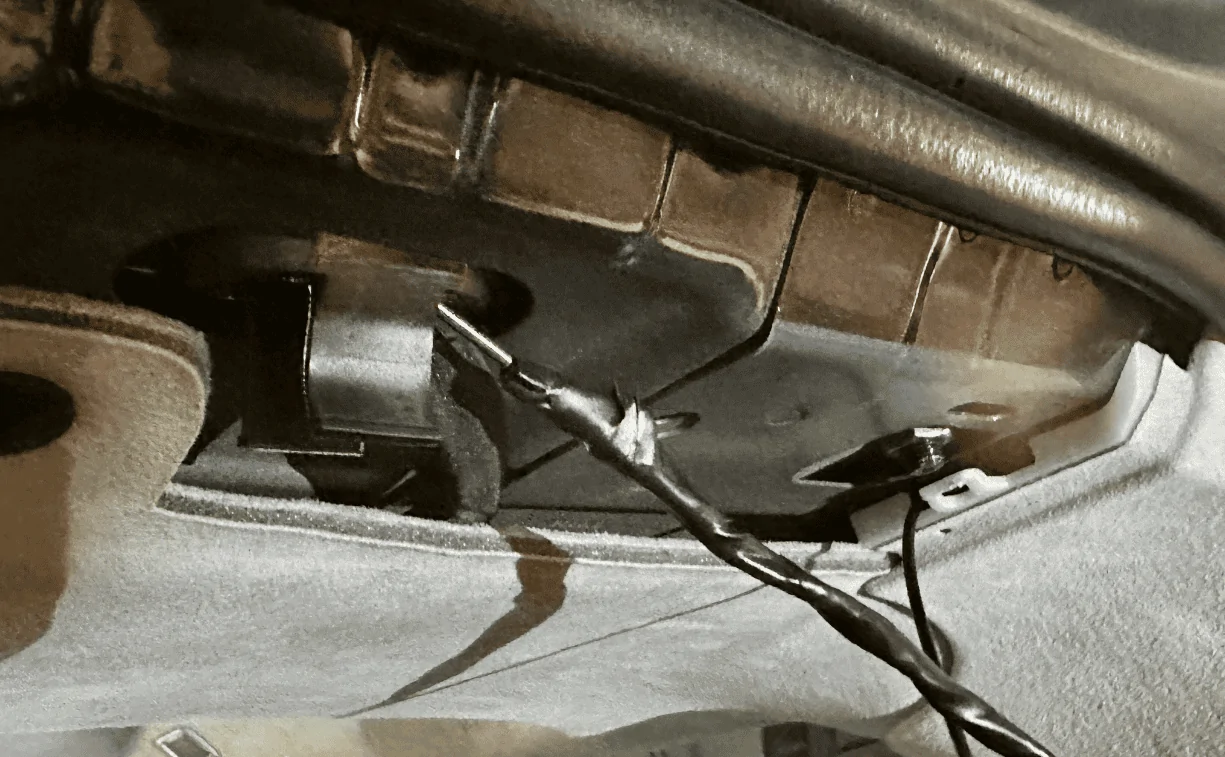
The opposite plastic trim piece on the liftgate will also need to come out, this one was the most difficult. I pulled a few plastic tabs off by accident and one of them even fell into a crevice which required a ton of patience and tweezers to pull back out. There are a dozen tabs. I started on the right bottom with a pry tool which caused the white plastic tab to fly off and into the crevice pictured in the next photo. Tip: After you get the bottom ones off, take an extra long flathead screwdriver and push against the two outer pins of the white tab for the ones at the top, it'll make it easier to dislodge those tabs:
Rivian R1T R1S Front + rear dashcam installed via  mirror tap (DIY tutorial) Screenshot 2023-08-28 at 12.00.51 AM


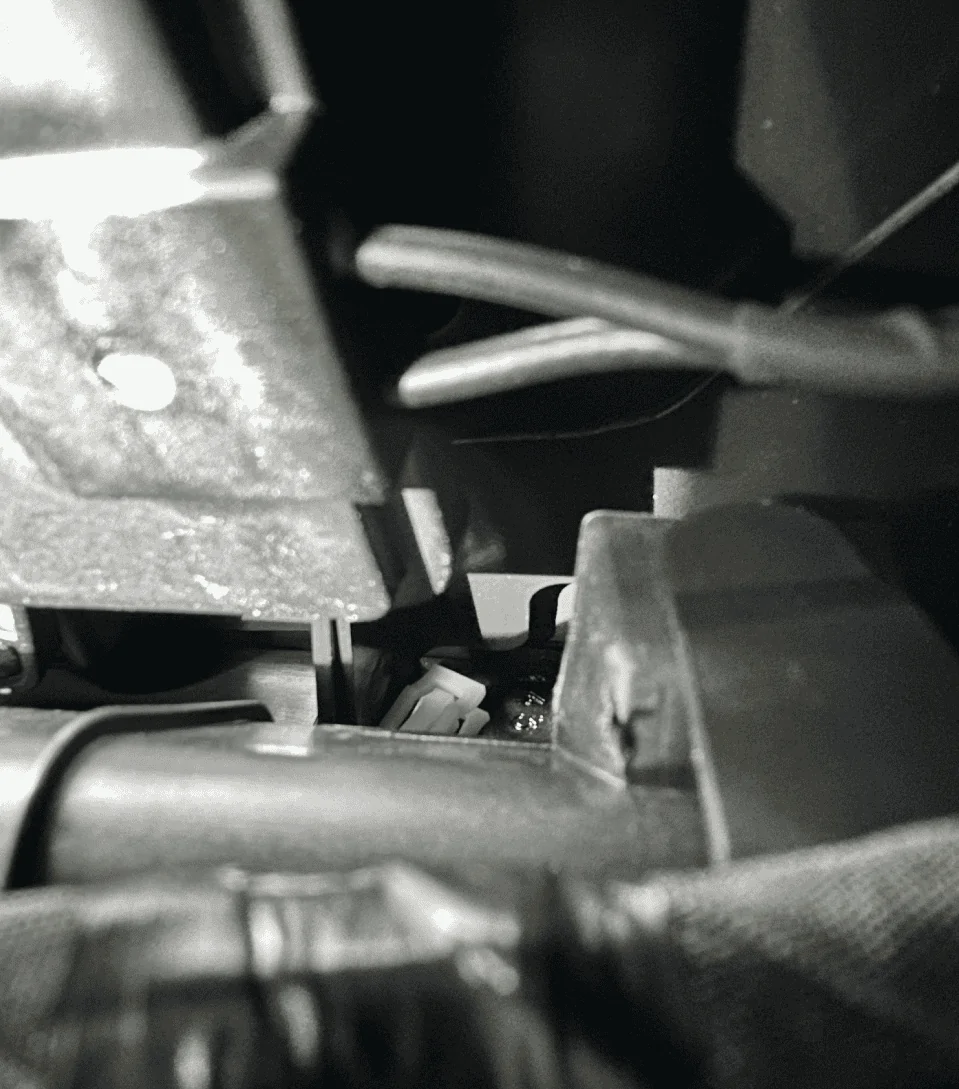
One of the missing plastic white tabs which I probably wasted 20-minutes retrieving:
Rivian R1T R1S Front + rear dashcam installed via  mirror tap (DIY tutorial) Screenshot 2023-08-28 at 12.03.59 AM


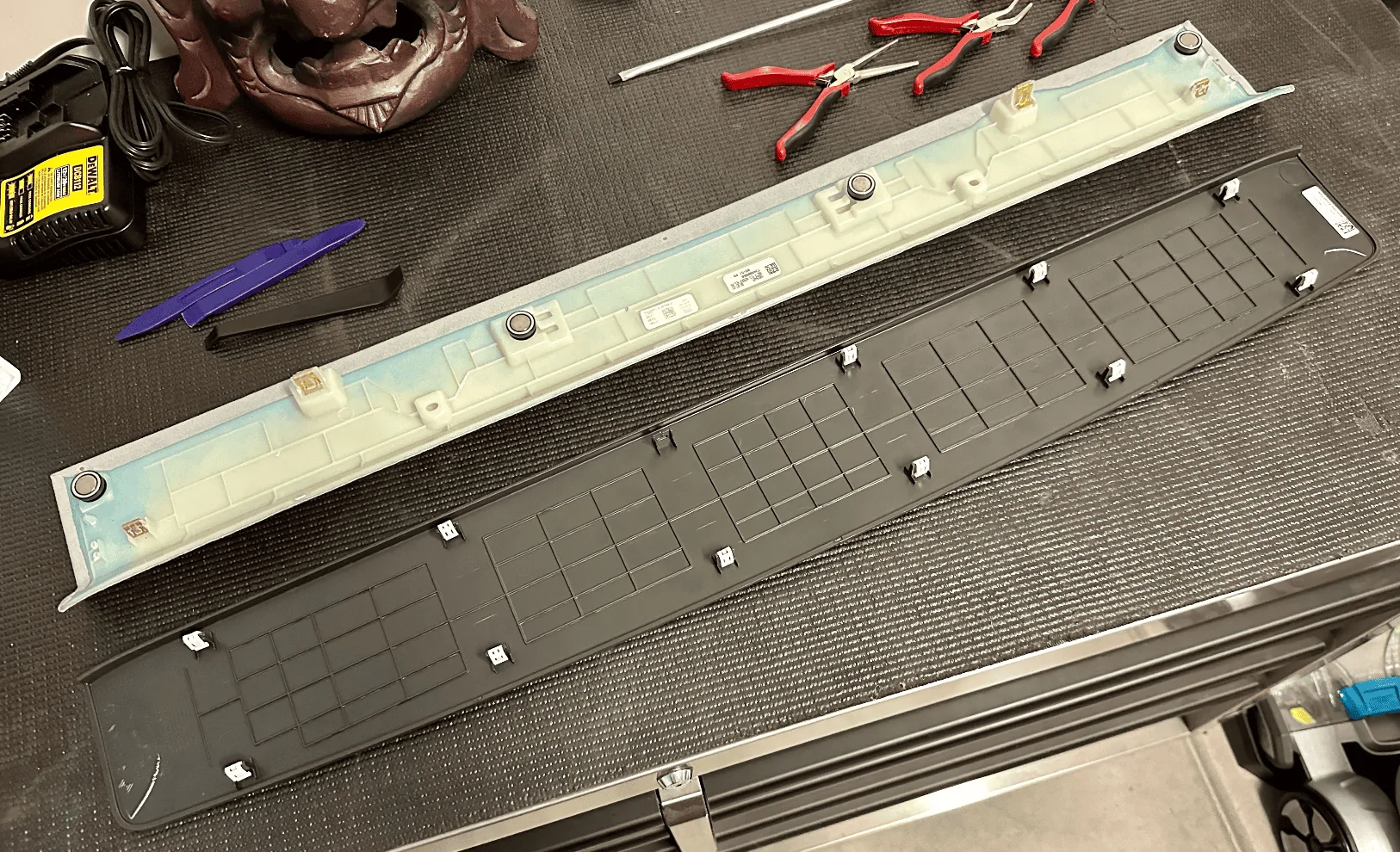
The two removed panels for your reference:
Rivian R1T R1S Front + rear dashcam installed via  mirror tap (DIY tutorial) Screenshot 2023-08-28 at 12.09.29 AM


Next, shape a coat hanger to align with the path of the rubber cable housing as possible, push down into the housing, and try to thread the metal wire through to the other opening. You might need to forcefully move the existing cables in the housing around to give the wire some room to run through, it's really tight in there. Once you are through to the other end, tape up the cable/wire you need to run and fish it back through. I had to do this twice as the first time it got stuck and I ended up pulling the coat hanger out without the cable.
Rivian R1T R1S Front + rear dashcam installed via  mirror tap (DIY tutorial) Screenshot 2023-08-28 at 12.11.43 AM


A better view of the bottom of that cable housing along with where the rear camera cable is coming out of the D-pillar:
Rivian R1T R1S Front + rear dashcam installed via  mirror tap (DIY tutorial) Screenshot 2023-08-28 at 12.16.04 AM


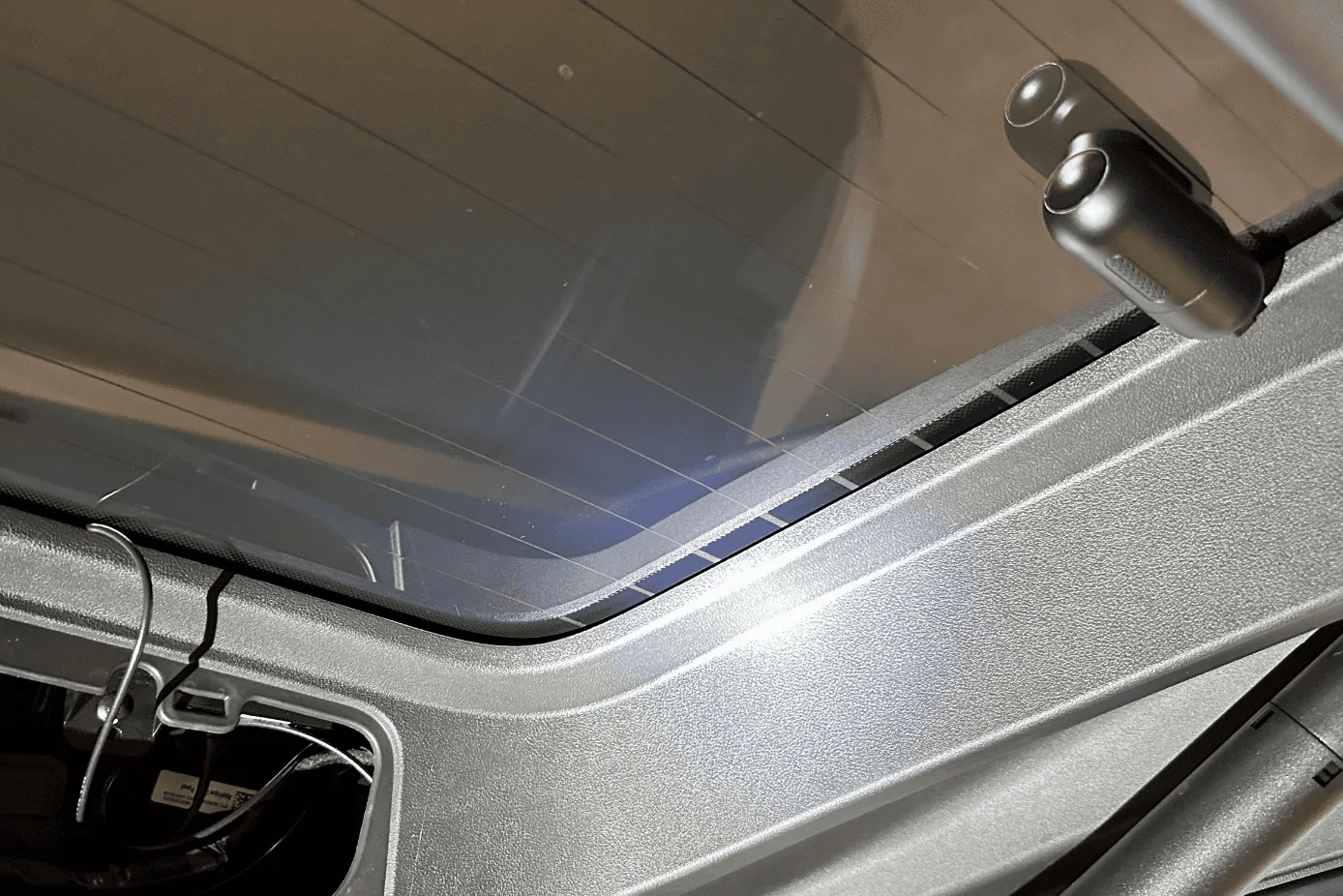
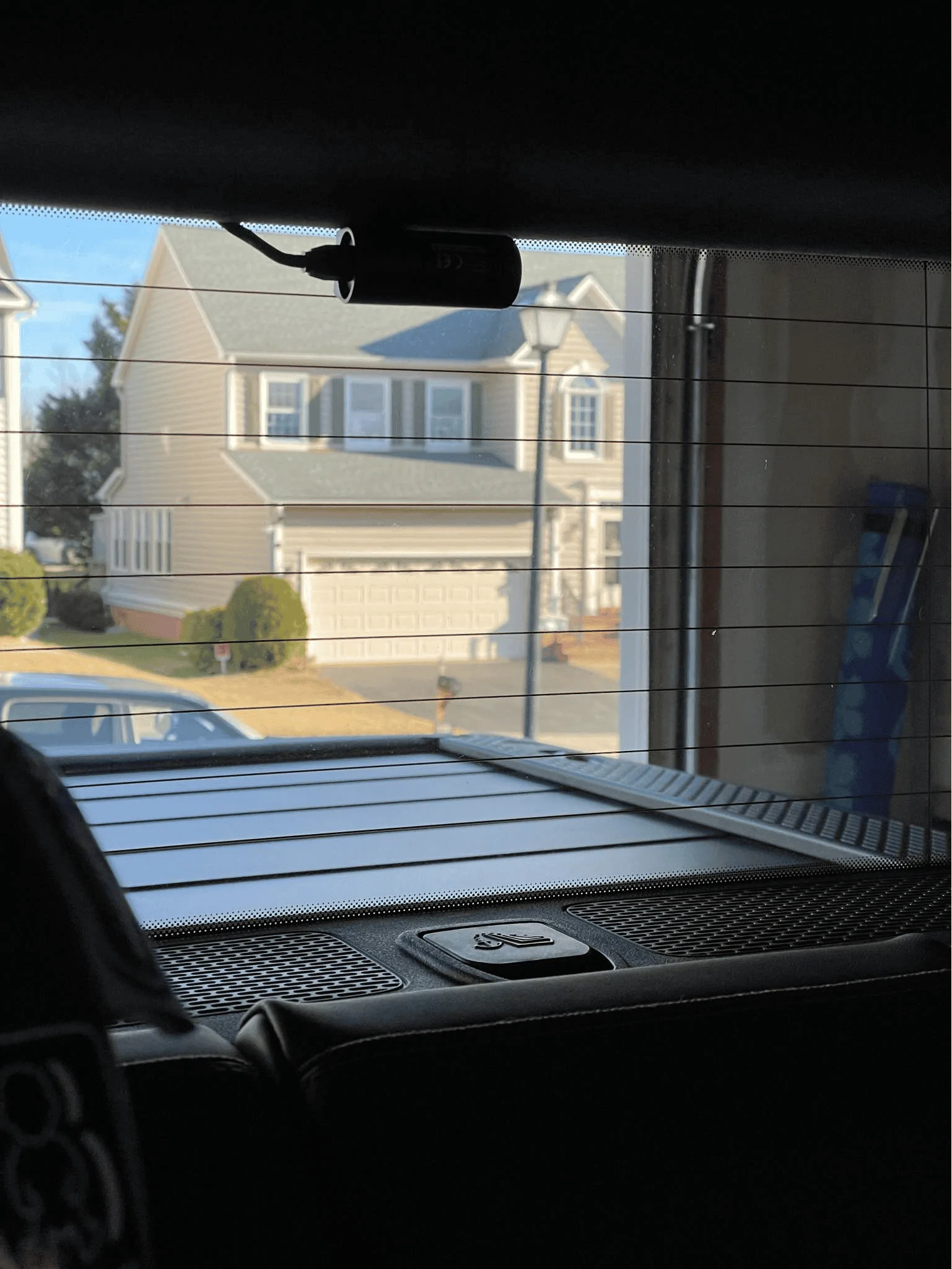
Once the wire was fished through, I ran it out of the top right corner of the liftgate and tucked the cable along the edge of the rear window. I positioned the camera towards the bottom above the two tightly spaced defroster grid lines:
Rivian R1T R1S Front + rear dashcam installed via  mirror tap (DIY tutorial) Screenshot 2023-08-28 at 12.17.35 AM


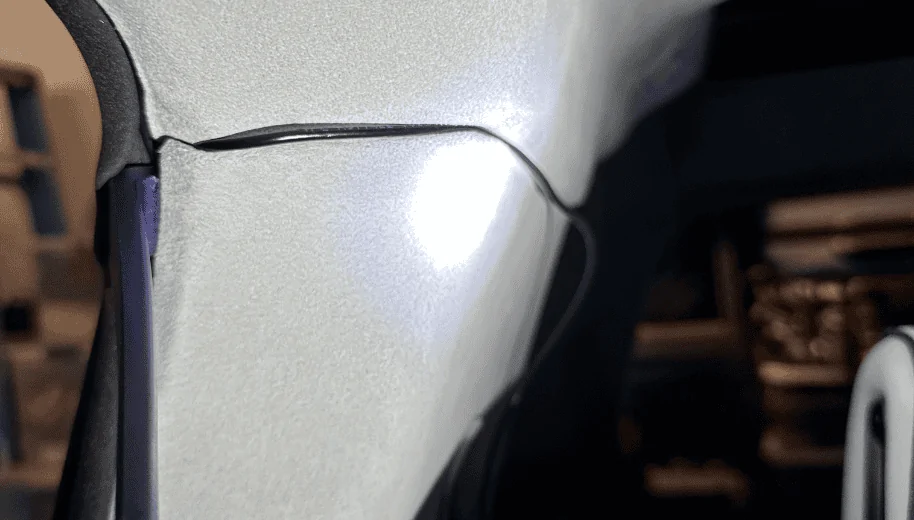
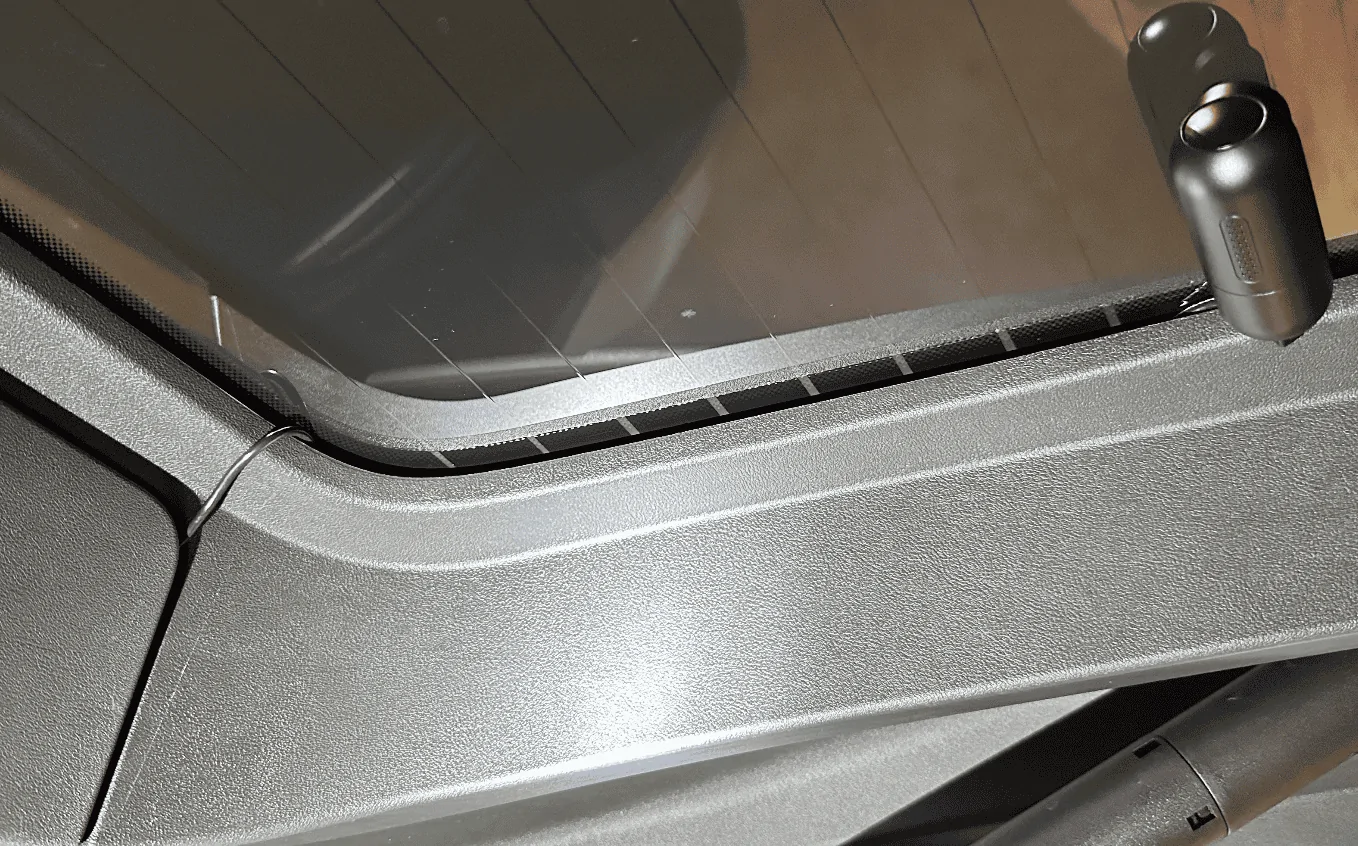
One thing I'll need to do but forgot until I snapped the trim back in place was to notch out a small hole so that the cable can run cleanly out. As you can see from the photo below, the trim piece isn't flush. I'll probably notch it on the right side since there's a small channel where the cable can run in. Or better yet, I find a better way to run it directly to the glass housing:
Rivian R1T R1S Front + rear dashcam installed via  mirror tap (DIY tutorial) Screenshot 2023-08-28 at 12.20.50 AM


That's it! When complete, all your other A, B, C, D pillar trim pieces should show no signs of a cable pushing it out if you pulled it far enough into each cavity.

Rivian R1T R1S Front + rear dashcam installed via  mirror tap (DIY tutorial) Screenshot 2023-08-28 at 12.22.53 AM
Sponsored

 
Last edited:

AYAYRON

Well-Known Member
First Name
Aaron
Joined
Nov 17, 2022
Threads
6
Messages
466
Reaction score
434
Location
Dallas Tx
Vehicles
r1t
Can you edit the beginning of the post and explain why you'd want this over the stock system, I am absolutely sure you have reasons, but, may be much more explanatory to state them!
 

Rickmc

Well-Known Member
First Name
Rick
Joined
May 11, 2023
Threads
9
Messages
103
Reaction score
117
Location
Centreville, VA
Vehicles
2022 R1T
Occupation
Vacation Rentals
Not to hijack your thread as it's awesome that you got the mirror tap working but for those that don't want to the mirror tap risk of running anything more than necessary off the 12 volt system when it's in "parking mode", this is the write up I did for my dash cam setup that I posted on the Rivian group fb page.


Dashcam install for my Rivian R1T

I chose to install a dashcam even though I have gear guard and there is a rumor that it will have an OTA update to enable dashcam for the following reasons

  • I wanted sound recording
  • I wanted a higher angle so I could see more than just from the belt down
  • I wanted 4k video
  • I wanted to be able to remotely view / get push alerts when there was an impact event. Had to be able to have the dashcam connect to a wifi hotspot like the Rivian's.

I also wanted the dashcam to work during parking mode but realized you can not risk tapping into the 12v batteries of the Rivian so I had to choose one that could work off a battery pack when the truck was shut down.

The choice was narrowed down to the Blackvue and Thinkware cameras but ended up going with the thinkware camera as it was the only one that had 2k rear camera. All others were 1080p or less. If you get hit in the rear, that's your only source of info so the higher resolution for plate ID was desirable.

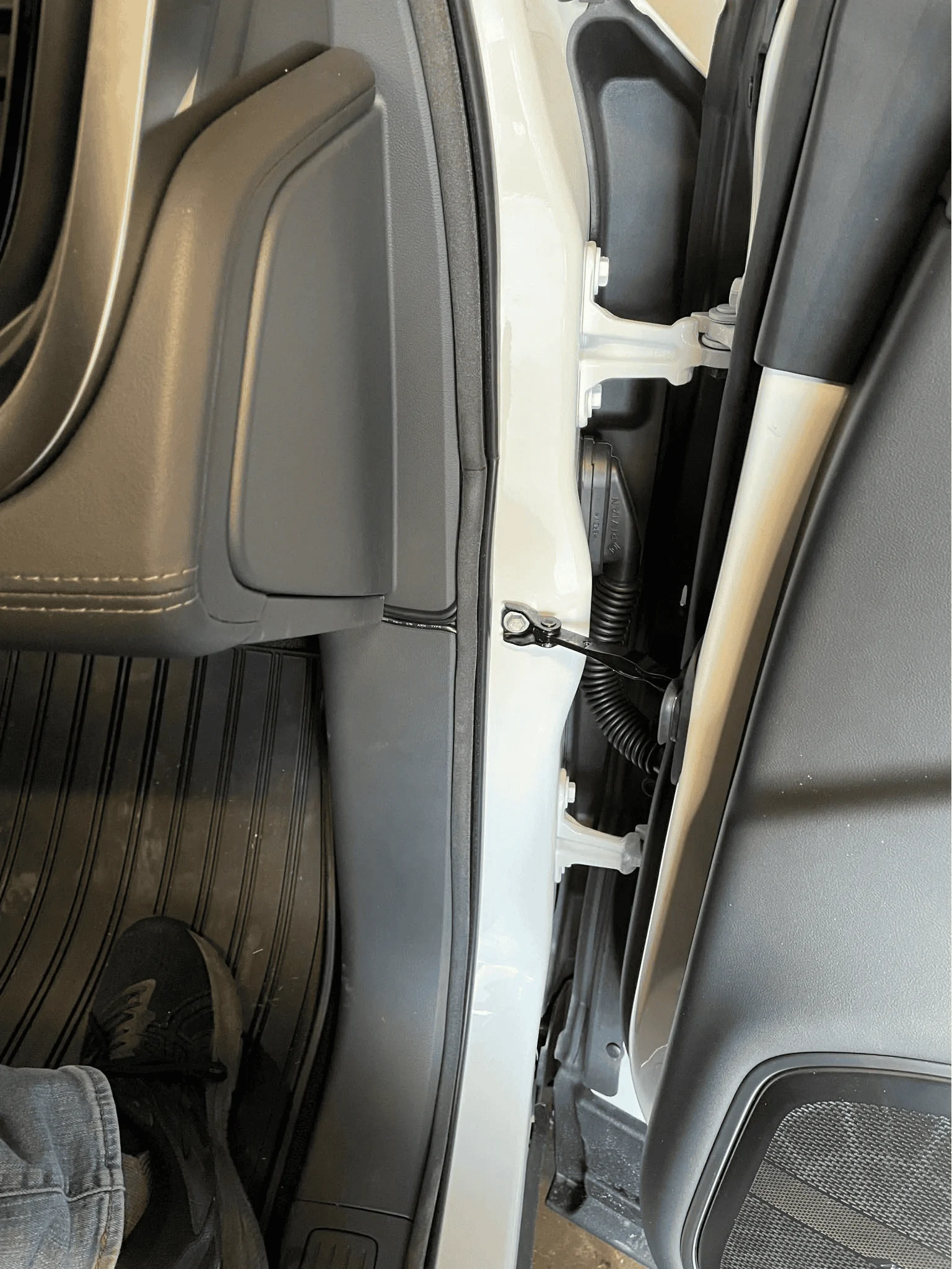
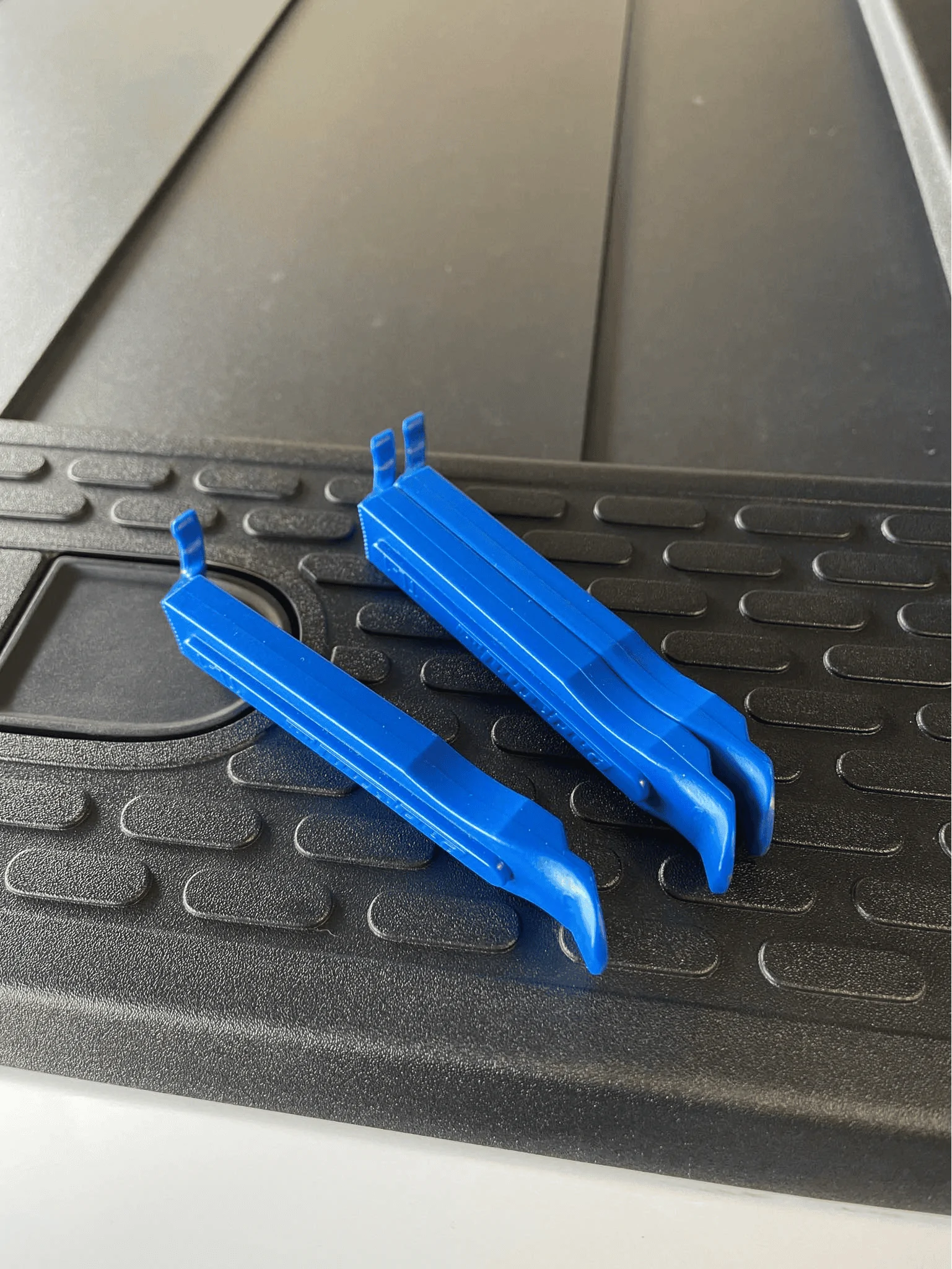
I was able to hide all the wires from the front camera and back camera to the battery pack with only a 2" section of exposed wire in the passenger door area. I used my bicycle tire changing levers, worked like a champ.

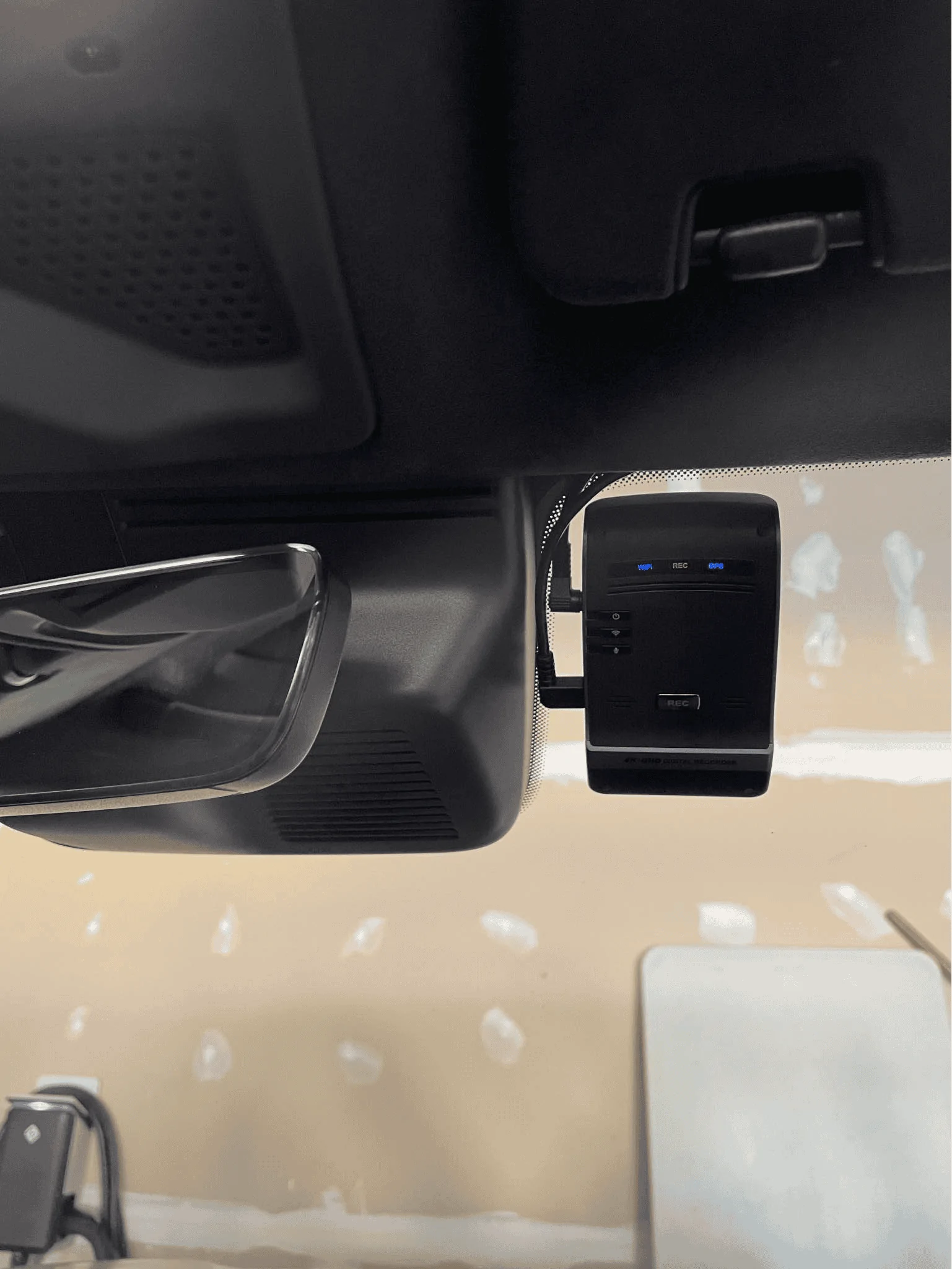
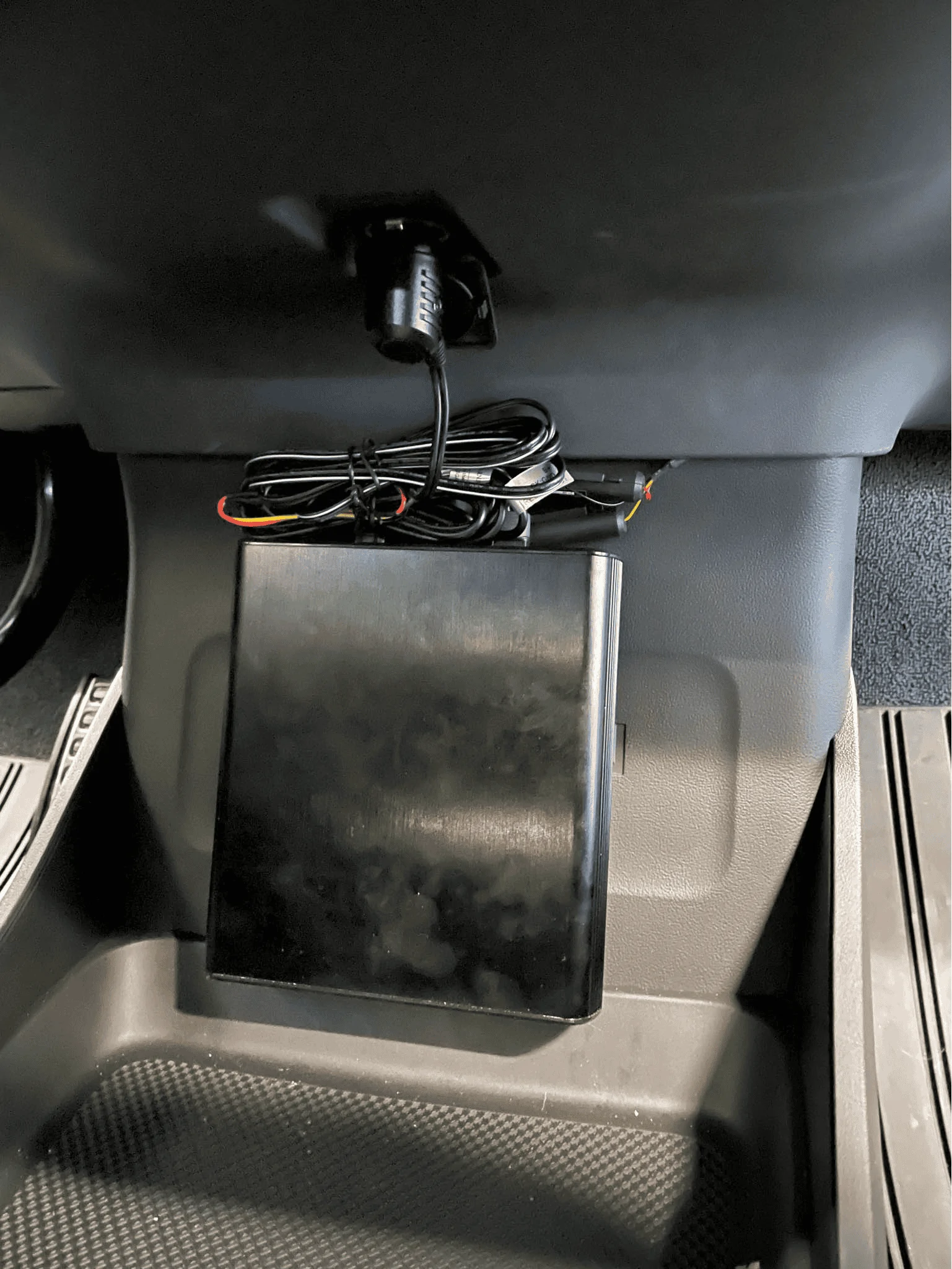
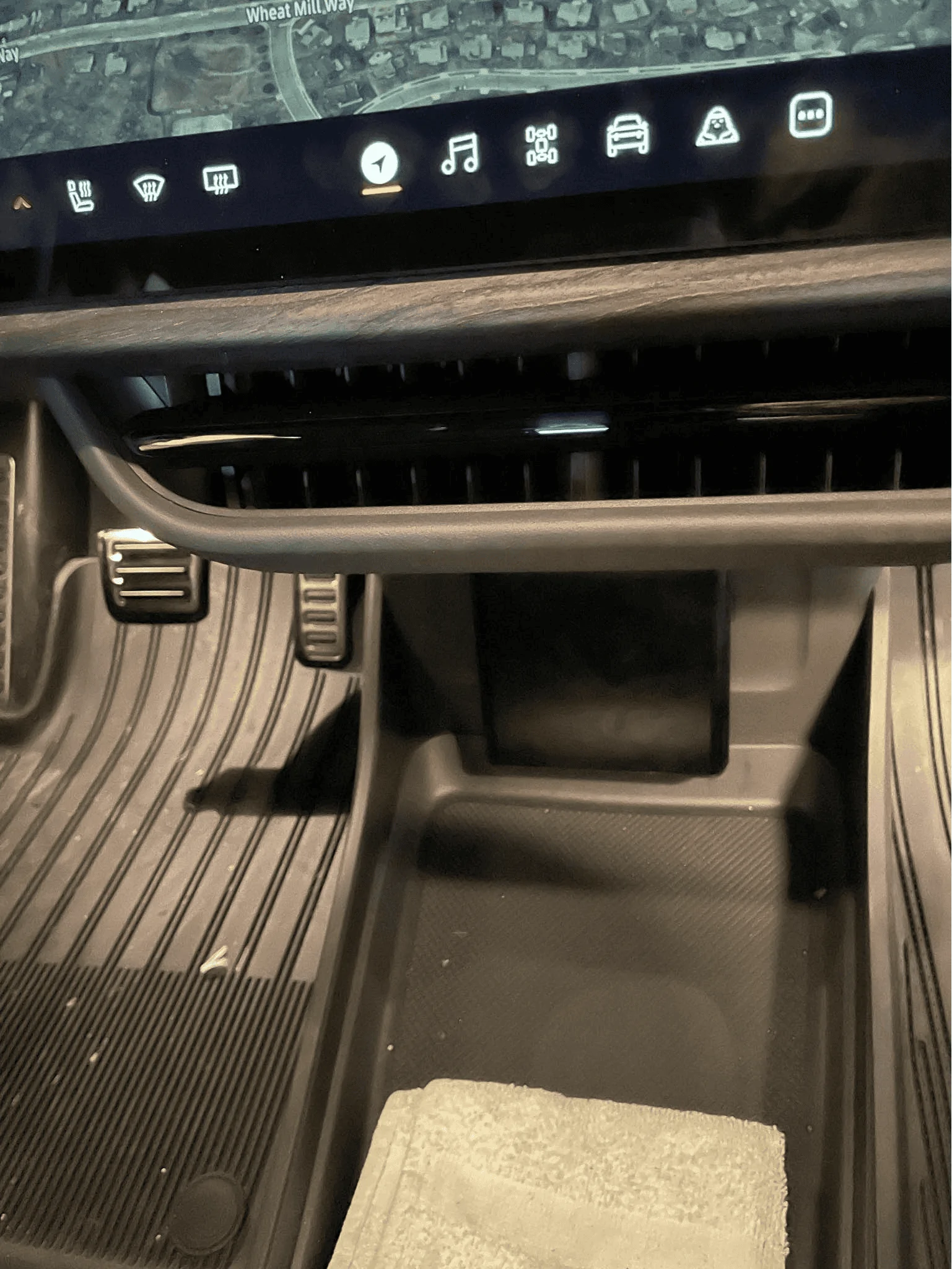
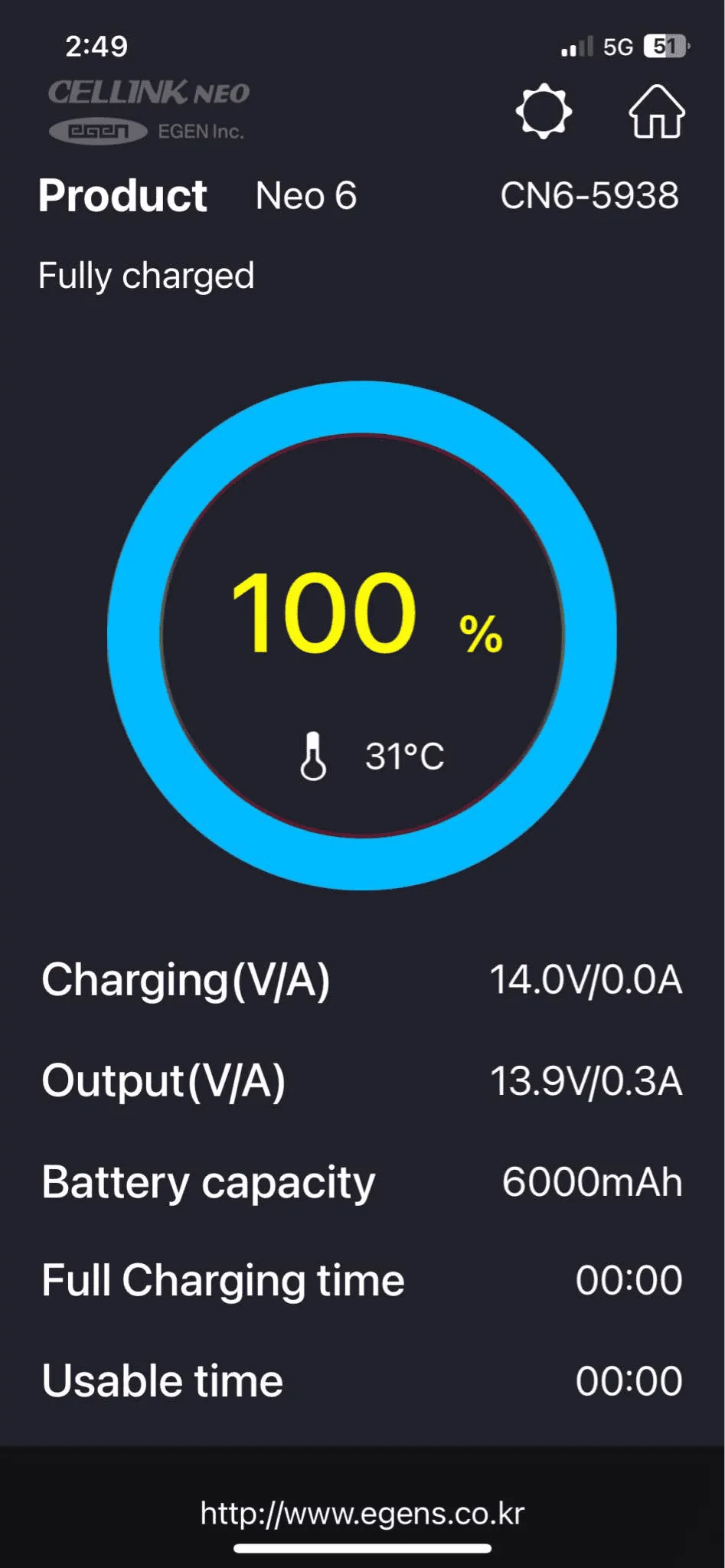
The way it is setup, the Battery pack is velcroed to the area under the dash by the 12volt power outlet. the back camera plugs into the front camera, the front camera is hard wired to the output of the battery. When the truck is on, the battery is getting 12v from the 12v outlet and signals the camera to enter running mode. When you walk away from the truck and it shuts screens down, the outlet is turned off and the battery pack signals the camera to go into parking mode and continues to give it power for as long as it lasts. A little over 24 hours. When the truck turns back on, the battery is recharged from 0% to 100% in 30-45 mins. Works perfectly and Rivian 12v system is never touched. The battery also has a bluetooth connection so the app can show you current battery level, draw, etc.

I am hoping Rivian will provide the ability to enable the lte hot spot while charging so we could remotely check on the dash cam if we have left the truck charging while we go to a restaurant etc. Currently it will shut down so you lose real time access and push notifications if there is an impact event until the hotspot gets turned back on. I found remotely unlocking the truck will turn on the lte hotspot and then locking again is a work around.... While the truck is on, the dashcam automatically reconnects to the hotspot in the R1T and you can access live camera views. Helpful if providing the truck to a valet, your children etc. Camera has GPS location at all times as well. You can follow the truck if it's on, for example via valet or at the shop

Here are the links to the camera and battery pack as well as photos of the install.

https://www.amazon.com/THINKWARE-3840X2160-2560X1440-Dashboard-Recorder/dp/B07XD6FLSY

https://www.amazon.com/Cellink-Battery-Supplies-Dashboard-Camera/dp/B06ZZ4W66R/

Rivian R1T R1S Front + rear dashcam installed via  mirror tap (DIY tutorial) 1693235267577

Rivian R1T R1S Front + rear dashcam installed via  mirror tap (DIY tutorial) 1693235280745

Rivian R1T R1S Front + rear dashcam installed via  mirror tap (DIY tutorial) 1693235293616

Rivian R1T R1S Front + rear dashcam installed via  mirror tap (DIY tutorial) 1693235307051

Rivian R1T R1S Front + rear dashcam installed via  mirror tap (DIY tutorial) 1693235323044

Rivian R1T R1S Front + rear dashcam installed via  mirror tap (DIY tutorial) 1693235332625

Rivian R1T R1S Front + rear dashcam installed via  mirror tap (DIY tutorial) 1693235344698

Rivian R1T R1S Front + rear dashcam installed via  mirror tap (DIY tutorial) 1693235355652
 

Spades

Member
First Name
Matt
Joined
Nov 26, 2022
Threads
2
Messages
21
Reaction score
16
Location
Colorado
Vehicles
Rivian R1T
Occupation
IT
Clubs
 
Not to hijack your thread as it's awesome that you got the mirror tap working but for those that don't want to the mirror tap risk of running anything more than necessary off the 12 volt system when it's in "parking mode", this is the write up I did for my dash cam setup that I posted on the Rivian group fb page.


Dashcam install for my Rivian R1T

I chose to install a dashcam even though I have gear guard and there is a rumor that it will have an OTA update to enable dashcam for the following reasons

  • I wanted sound recording
  • I wanted a higher angle so I could see more than just from the belt down
  • I wanted 4k video
  • I wanted to be able to remotely view / get push alerts when there was an impact event. Had to be able to have the dashcam connect to a wifi hotspot like the Rivian's.

I also wanted the dashcam to work during parking mode but realized you can not risk tapping into the 12v batteries of the Rivian so I had to choose one that could work off a battery pack when the truck was shut down.

The choice was narrowed down to the Blackvue and Thinkware cameras but ended up going with the thinkware camera as it was the only one that had 2k rear camera. All others were 1080p or less. If you get hit in the rear, that's your only source of info so the higher resolution for plate ID was desirable.

I was able to hide all the wires from the front camera and back camera to the battery pack with only a 2" section of exposed wire in the passenger door area. I used my bicycle tire changing levers, worked like a champ.

The way it is setup, the Battery pack is velcroed to the area under the dash by the 12volt power outlet. the back camera plugs into the front camera, the front camera is hard wired to the output of the battery. When the truck is on, the battery is getting 12v from the 12v outlet and signals the camera to enter running mode. When you walk away from the truck and it shuts screens down, the outlet is turned off and the battery pack signals the camera to go into parking mode and continues to give it power for as long as it lasts. A little over 24 hours. When the truck turns back on, the battery is recharged from 0% to 100% in 30-45 mins. Works perfectly and Rivian 12v system is never touched. The battery also has a bluetooth connection so the app can show you current battery level, draw, etc.

I am hoping Rivian will provide the ability to enable the lte hot spot while charging so we could remotely check on the dash cam if we have left the truck charging while we go to a restaurant etc. Currently it will shut down so you lose real time access and push notifications if there is an impact event until the hotspot gets turned back on. I found remotely unlocking the truck will turn on the lte hotspot and then locking again is a work around.... While the truck is on, the dashcam automatically reconnects to the hotspot in the R1T and you can access live camera views. Helpful if providing the truck to a valet, your children etc. Camera has GPS location at all times as well. You can follow the truck if it's on, for example via valet or at the shop

Here are the links to the camera and battery pack as well as photos of the install.

https://www.amazon.com/THINKWARE-3840X2160-2560X1440-Dashboard-Recorder/dp/B07XD6FLSY

https://www.amazon.com/Cellink-Battery-Supplies-Dashboard-Camera/dp/B06ZZ4W66R/

1693235267577.png

1693235280745.png

1693235293616.png

1693235307051.png

1693235323044.png

1693235332625.png

1693235344698.png

1693235355652.png
Man I wish they kept the 12v under the dash so I could do something similar.
 

Sponsored

OP
OP
citizen

citizen

Well-Known Member
First Name
Darren
Joined
Sep 1, 2021
Threads
16
Messages
395
Reaction score
439
Location
Orange County, CA
Vehicles
R1S, 911, RX350h
Occupation
Designer
Clubs
 
Last edited:
OP
OP
citizen

citizen

Well-Known Member
First Name
Darren
Joined
Sep 1, 2021
Threads
16
Messages
395
Reaction score
439
Location
Orange County, CA
Vehicles
R1S, 911, RX350h
Occupation
Designer
Clubs
 
Not to hijack your thread as it's awesome that you got the mirror tap working but for those that don't want to the mirror tap risk of running anything more than necessary off the 12 volt system when it's in "parking mode", this is the write up I did for my dash cam setup that I posted on the Rivian group fb page.


Dashcam install for my Rivian R1T

I chose to install a dashcam even though I have gear guard and there is a rumor that it will have an OTA update to enable dashcam for the following reasons

  • I wanted sound recording
  • I wanted a higher angle so I could see more than just from the belt down
  • I wanted 4k video
  • I wanted to be able to remotely view / get push alerts when there was an impact event. Had to be able to have the dashcam connect to a wifi hotspot like the Rivian's.

I also wanted the dashcam to work during parking mode but realized you can not risk tapping into the 12v batteries of the Rivian so I had to choose one that could work off a battery pack when the truck was shut down.

The choice was narrowed down to the Blackvue and Thinkware cameras but ended up going with the thinkware camera as it was the only one that had 2k rear camera. All others were 1080p or less. If you get hit in the rear, that's your only source of info so the higher resolution for plate ID was desirable.

I was able to hide all the wires from the front camera and back camera to the battery pack with only a 2" section of exposed wire in the passenger door area. I used my bicycle tire changing levers, worked like a champ.

The way it is setup, the Battery pack is velcroed to the area under the dash by the 12volt power outlet. the back camera plugs into the front camera, the front camera is hard wired to the output of the battery. When the truck is on, the battery is getting 12v from the 12v outlet and signals the camera to enter running mode. When you walk away from the truck and it shuts screens down, the outlet is turned off and the battery pack signals the camera to go into parking mode and continues to give it power for as long as it lasts. A little over 24 hours. When the truck turns back on, the battery is recharged from 0% to 100% in 30-45 mins. Works perfectly and Rivian 12v system is never touched. The battery also has a bluetooth connection so the app can show you current battery level, draw, etc.

I am hoping Rivian will provide the ability to enable the lte hot spot while charging so we could remotely check on the dash cam if we have left the truck charging while we go to a restaurant etc. Currently it will shut down so you lose real time access and push notifications if there is an impact event until the hotspot gets turned back on. I found remotely unlocking the truck will turn on the lte hotspot and then locking again is a work around.... While the truck is on, the dashcam automatically reconnects to the hotspot in the R1T and you can access live camera views. Helpful if providing the truck to a valet, your children etc. Camera has GPS location at all times as well. You can follow the truck if it's on, for example via valet or at the shop

Here are the links to the camera and battery pack as well as photos of the install.

https://www.amazon.com/THINKWARE-3840X2160-2560X1440-Dashboard-Recorder/dp/B07XD6FLSY

https://www.amazon.com/Cellink-Battery-Supplies-Dashboard-Camera/dp/B06ZZ4W66R/

1693235267577.png

1693235280745.png

1693235293616.png

1693235307051.png

1693235323044.png

1693235332625.png

1693235344698.png

1693235355652.png
Saw your post in the other thread and thought about switching cameras to your setup. I actually like the form factor of the Thinkware you installed, and the 2K rear would've been an upgrade. Since I had the Viofo already (purchased well before my R1S arrived), I just went with what I had on hand.

Having that dedicated battery pack is sweet. And I guess I would've just powered it via the fuse panel since I don't have the 12v under the dash. Still up for consideration.

Viewing the footage that has been captured so far, I do see the camera on and recording when the R1S is plugged in and charging in the middle of the night. If I see any negative effects on the 12v battery I'll probably have to move forward with the backup battery. It was enough of a concern for me to unplug the camera when I was working on the car so that it didn't constantly turn on every time I opened a door.
 

Feetdry

Well-Known Member
First Name
terry
Joined
Apr 29, 2021
Threads
8
Messages
235
Reaction score
171
Location
Samish Island
Vehicles
Hydro 84
Occupation
medical sales, almost retired
My Garmin DriveCam 76 is now on the windshield of my new R1T. It provides video and highway info that my Rivian doesn't. It saved me in an accident about a year ago and won't be leaving the windshield of this Rivian.
 

UnsungZero_OldTimeAdMan

Well-Known Member
First Name
Barnum
Joined
Mar 20, 2023
Threads
66
Messages
8,536
Reaction score
11,722
Location
SoCal
Vehicles
'23 GW Quad-Large R1T "Ghost"
Occupation
Advertising Circus

Before you pried off the sensor housing cover, did you first pry off the piece directly above the mirror stalk? the one shaped like a finger? Or did you just very carefully and methodically pried on the cover in sequence indicated?

Quite annoyed that my R1T does not have the underdash 12V. Pondering how much I want to risk 12V drain by installing a 2 channel Viofo via the Garmin OBD2 USB-A adapter. Will use mirror tap for radar detector. Upcoming OTA supposedly will add 12V battery monitoring.
 
OP
OP
citizen

citizen

Well-Known Member
First Name
Darren
Joined
Sep 1, 2021
Threads
16
Messages
395
Reaction score
439
Location
Orange County, CA
Vehicles
R1S, 911, RX350h
Occupation
Designer
Clubs
 
Good call out, the piece above the mirror stalk came out after I pried the four points off and removed the bottom large enclosure.

When reinstalling it was the last piece I popped back into place after the enclosure was already snapped into place.
 
Last edited:

Sponsored

moosehead

Well-Known Member
Joined
Sep 16, 2021
Threads
64
Messages
2,092
Reaction score
4,594
Location
Denver, CO
Vehicles
‘22 Ioniq 5, ‘78 Jeep Wagoneer
Are you guys disconnecting 12V batteries or otherwise turning car off prior to doing these hard wire taps and/or fuse taps for accessories? Is there any system or short exposure if the R1T is otherwise “on” while doing so? Please and thanks in advance.

@citizen, much appreciate the great write up and pics. While this topic is also covered in the hard wire detector thread, yours is clear and thorough in one post. Cheers.
 

Granolander

Active Member
Joined
Jun 14, 2024
Threads
0
Messages
27
Reaction score
2
Location
USA
Vehicles
Rivian R1S
Due to insurance scammers, terrible drivers (captured via my FIL's car the week after they took delivery), and criminals driving recklessly leaving a crime scene (was hit while waiting at a light in San Francisco), I've always been a stickler about having dashcams installed when driving.

Brought a dashcam with me when picking up my FIL's car earlier in the year and had it mounted even before we left the dealership. For our R1S, one of the first two items I ordered was the 90-degree angle adapter and a Samsung memory stick. Made sure it was installed and Drive Cam was running before I left the service center.

But due to the low resolution of the Rivian cameras as detailed by @opnwide in this extremely helpful thread, I always knew I would be adding an aftermarket camera to augment Rivian’s system.

Thanks to this helpful thread and @opnwide's video, I was able to jerry-rig a mirror-tap for the Viofo A139 Pro front + rear dashcam and run the rear camera wire cleanly to the liftgate. Below is a write-up of what I did, hopefully, you'll find it helpful.

Disclaimer: I'm not responsible for anything that happens to you or your property. Be careful when working with the trim pieces near airbags. And as always, watch out for live / hot wires.

Mirrortap:
Whereas radar detectors seem to have a number of mirrortap options, there doesn't seem to be an equivalent if you just want a USB-C connection. For other vehicles, I've mirrortapped with a Dongar adapter (not available for the Rivian, though I did wonder if another brand's 10-pin Type H would work) or tapped the fusebox. Due to reports of Rivian not using standard size fuses I zeroed in on the mirrortap option early on.

Used the following two items and some heat shrink tubing for my mirrortap:
How everything looked like after I crimped the male connector to the buck module:
Screenshot 2023-08-27 at 11.16.01 PM.png


After some unsuccessful attempts at tapping the rear of the molex connector, I ended up flattening the pins:
Screenshot 2023-08-27 at 11.15.40 PM.png

Screenshot 2023-08-27 at 11.41.16 PM.png


Tapping the mirror assembly:
Using a pry tool, I would suggest removing the housing cover in the order as labeled in the photo. The passenger side has more room to work with. Note that the front of the enclosure has a cut out which might make it more prone to damage, so I would suggest focusing on prying from the side. In this view, you can clearly see the molex connector you'll be tapping (labeled T / 260). Note that there have been numerous reports of the mirror falling off so just be careful when working in this area.
Screenshot 2023-08-27 at 11.22.25 PM.png


Better shot of the back of the connector we'll be tapping, if the yellow wire is overlapping, disconnect the connector and reorient it so you get as clean of a setup as possible:
Screenshot 2023-08-27 at 11.26.07 PM.png


If Dongar or anyone else wants to offer a productized connector, here's what the connector looks like, there are a few 10-pin connectors used by the other car manufacturers, wasn't sure which mapped closest to the one Rivian uses:
Screenshot 2023-08-27 at 11.30.02 PM.png
Screenshot 2023-08-27 at 11.31.27 PM.png


Tap red to red and black to black, you might need to attempt it a few times to get it seated correctly and drawing power:
Screenshot 2023-08-27 at 11.34.04 PM.png


Test your connection to make sure everything is working as expected:
Screenshot 2023-08-27 at 11.35.14 PM.png


This is what the mirror housing looks like, there's a nice little void in the middle but don't touch the silver box, it's hot!
Screenshot 2023-08-27 at 11.36.30 PM.png


Buck module all tucked in, also used some extra electrical tape around the molex tap to make sure it doesn't get unseated accidentally:
Screenshot 2023-08-27 at 11.38.05 PM.png


Now just route the USB-C wire up towards the roof and reattach the housing cover when you feel like everything is working as expected. Onto the next step.

Wiring up the rear camera:
The process is super easy in the front and gets tougher as you work your way towards the rear. There's plenty of room at the top of the windshield so just run the cable until you hit the A-pillar:
Screenshot 2023-08-27 at 11.43.32 PM.png


For all trim pieces, prying from under the weather seal makes life a little easier. At the A-pillar, lift up the seal and pry from there, you'll get plenty of leverage and will be able to open a large cavity to run the wire through.
Screenshot 2023-08-27 at 11.46.39 PM.png

Screenshot 2023-08-27 at 11.46.27 PM.png


Once the cable is deep behind the trim piece, run it up along the door seal to the B-pillar:
Screenshot 2023-08-27 at 11.51.17 PM.png


At the B-pillar, again work from the portion underneath the weather seal, I found that the bottom piece was easier to pull out than the top piece. You won't be able to pry the trim out as far as the A-pillar but it'll be enough to get the wire behind it. Once you've gotten the wire deep behind the B-pillar trim piece, run it up along the door seal to the C-pillar.
Screenshot 2023-08-27 at 11.53.40 PM.png

Screenshot 2023-08-28 at 12.23.26 AM.png


The C-pillar was similar if not a little tougher than the B-pillar, follow the same steps. Focus on the bottom trim piece and pulling from under the seal:
Screenshot 2023-08-27 at 11.56.04 PM.png

Screenshot 2023-08-28 at 12.23.47 AM.png


Run the wire up along the top of the rear passenger side window pane similar to what you did at the windshield. Then at the back of the R1S is where things get real fun. Note the airbag here.
Screenshot 2023-08-27 at 11.58.08 PM.png


Remove the rear's top trim piece. There are two plastic tabs (circled in red) you'll need to be careful with, two more plastic tabs are towards the back that I found relatively easy to pull down, and the rest of the mounting points are just magnets:
Screenshot 2023-08-27 at 11.58.42 PM.png


The opposite plastic trim piece on the liftgate will also need to come out, this one was the most difficult. I pulled a few plastic tabs off by accident and one of them even fell into a crevice which required a ton of patience and tweezers to pull back out. There are a dozen tabs. I started on the right bottom with a pry tool which caused the white plastic tab to fly off and into the crevice pictured in the next photo. Tip: After you get the bottom ones off, take an extra long flathead screwdriver and push against the two outer pins of the white tab for the ones at the top, it'll make it easier to dislodge those tabs:
Screenshot 2023-08-28 at 12.00.51 AM.png


One of the missing plastic white tabs which I probably wasted 20-minutes retrieving:
Screenshot 2023-08-28 at 12.03.59 AM.png


The two removed panels for your reference:
Screenshot 2023-08-28 at 12.09.29 AM.png


Next, shape a coat hanger to align with the path of the rubber cable housing as possible, push down into the housing, and try to thread the metal wire through to the other opening. You might need to forcefully move the existing cables in the housing around to give the wire some room to run through, it's really tight in there. Once you are through to the other end, tape up the cable/wire you need to run and fish it back through. I had to do this twice as the first time it got stuck and I ended up pulling the coat hanger out without the cable.
Screenshot 2023-08-28 at 12.11.43 AM.png


A better view of the bottom of that cable housing along with where the rear camera cable is coming out of the D-pillar:
Screenshot 2023-08-28 at 12.16.04 AM.png


Once the wire was fished through, I ran it out of the top right corner of the liftgate and tucked the cable along the edge of the rear window. I positioned the camera towards the bottom above the two tightly spaced defroster grid lines:
Screenshot 2023-08-28 at 12.17.35 AM.png


One thing I'll need to do but forgot until I snapped the trim back in place was to notch out a small hole so that the cable can run cleanly out. As you can see from the photo below, the trim piece isn't flush. I'll probably notch it on the right side since there's a small channel where the cable can run in. Or better yet, I find a better way to run it directly to the glass housing:
Screenshot 2023-08-28 at 12.20.50 AM.png


That's it! When complete, all your other A, B, C, D pillar trim pieces should show no signs of a cable pushing it out if you pulled it far enough into each cavity.

Screenshot 2023-08-28 at 12.22.53 AM.png
Thank you for posting this. A few questions
  • Do you know what is the output voltage and Amps of the cables you are tapping onto?
  • Is this an “Always On” output?
  • Have you noticed if tapping onto this affects the operation of the front camera/sensors or the tinting of the mirror?
 
OP
OP
citizen

citizen

Well-Known Member
First Name
Darren
Joined
Sep 1, 2021
Threads
16
Messages
395
Reaction score
439
Location
Orange County, CA
Vehicles
R1S, 911, RX350h
Occupation
Designer
Clubs
 
Thank you for posting this. A few questions
  • Do you know what is the output voltage and Amps of the cables you are tapping onto?
  • Is this an “Always On” output?
  • Have you noticed if tapping onto this affects the operation of the front camera/sensors or the tinting of the mirror?
  1. Did not check output
  2. Not always on, comes on when the car comes on, will power down when car goes to sleep
  3. Front camera/sensors are fine, I turned off mirror dimming due to my tinted windows
 
OP
OP
citizen

citizen

Well-Known Member
First Name
Darren
Joined
Sep 1, 2021
Threads
16
Messages
395
Reaction score
439
Location
Orange County, CA
Vehicles
R1S, 911, RX350h
Occupation
Designer
Clubs
 
Update:
For some reason, the buck charging module failed. I think others using similar for radar detectors and other dashcams have been fine. The Viofo A139Pro is super power hungry and may have contributed to the buck module's failure.

So after sitting on the rewiring for a few months, finally went ahead and fuse tapped. I was hoping that someone would find an always on fuse so I could enable parking mode but decided to forgo it.

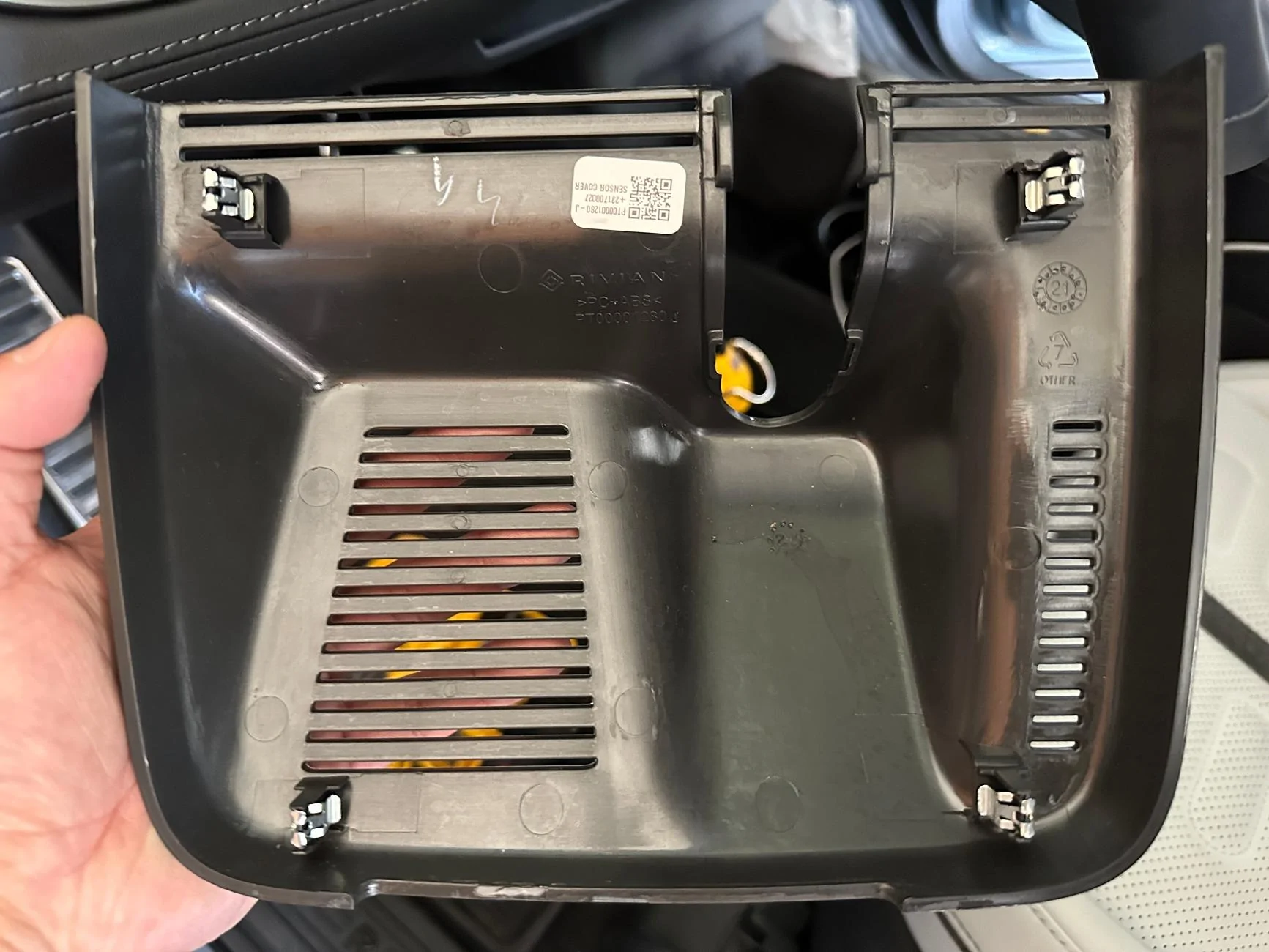
Since I took some of the trim apart again, figured I'd grab some photos that might be helpful to others. Note the underside of the rear view mirror trim piece, this will help you decide where to place pressure when popping the tabs off.
Rivian R1T R1S Front + rear dashcam installed via  mirror tap (DIY tutorial) IMG_3711


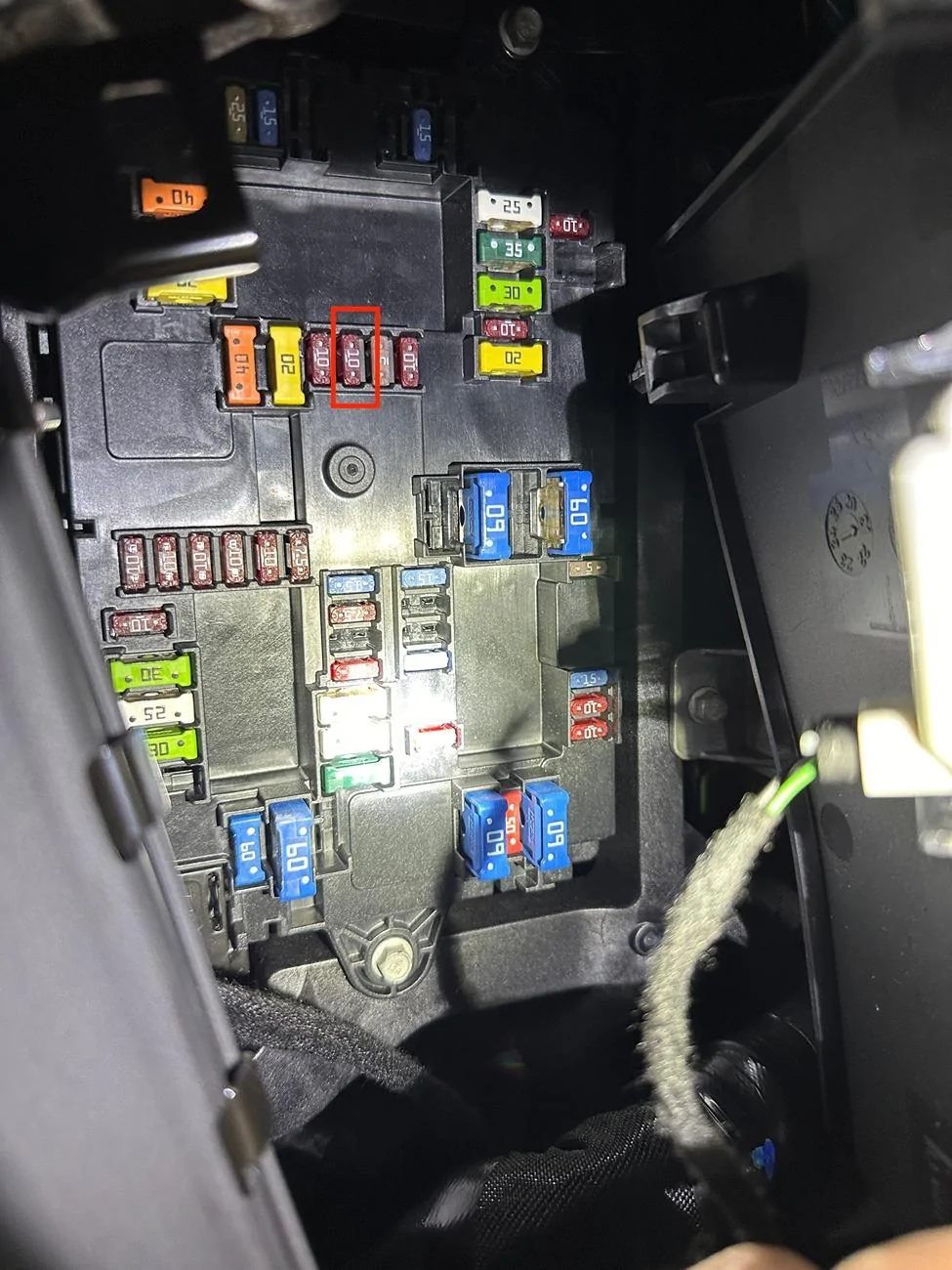
Plenty of others have better video and photos but just for kicks, here's a shot of the fuse panel; we're tapping into F48 (USB RH 2, 3 rows and wireless charger), the same one recommended by EV Sportline for their various installs.
Rivian R1T R1S Front + rear dashcam installed via  mirror tap (DIY tutorial) IMG_3713


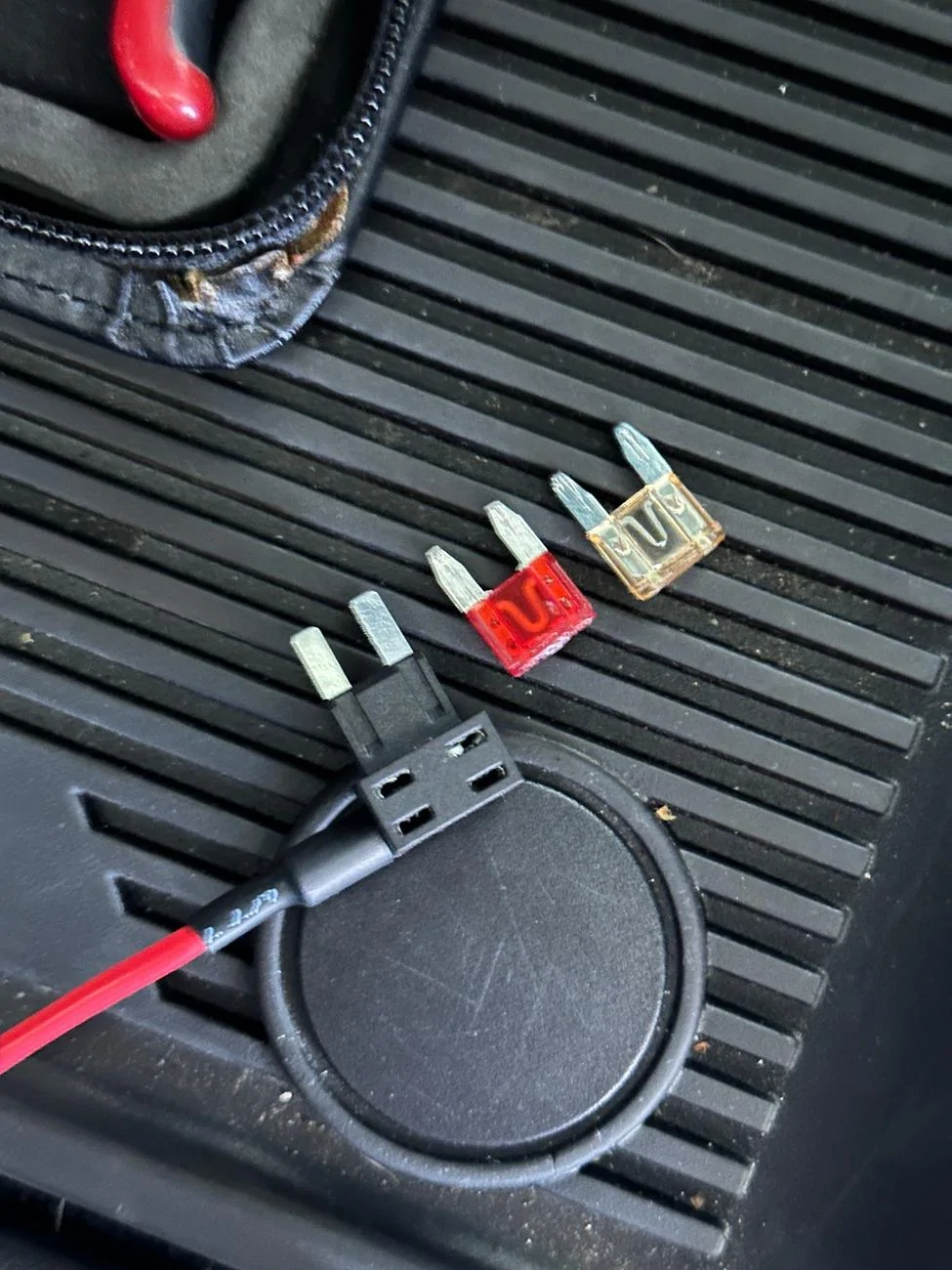
For whatever reason, I had a really tough time getting Rivian's mini fuse to fit into Viofo's HK4 hardwire adapter. The kit included two sets and on both I found it impossible to get the fuse to go down more than half way. I gave up after a good 10 minutes and just subbed in another 10 amp fuse I had. Putting the fuses next to and on top of each other, I couldn't really tell much of a difference and why I had such a difficult time:
Rivian R1T R1S Front + rear dashcam installed via  mirror tap (DIY tutorial) IMG_3714


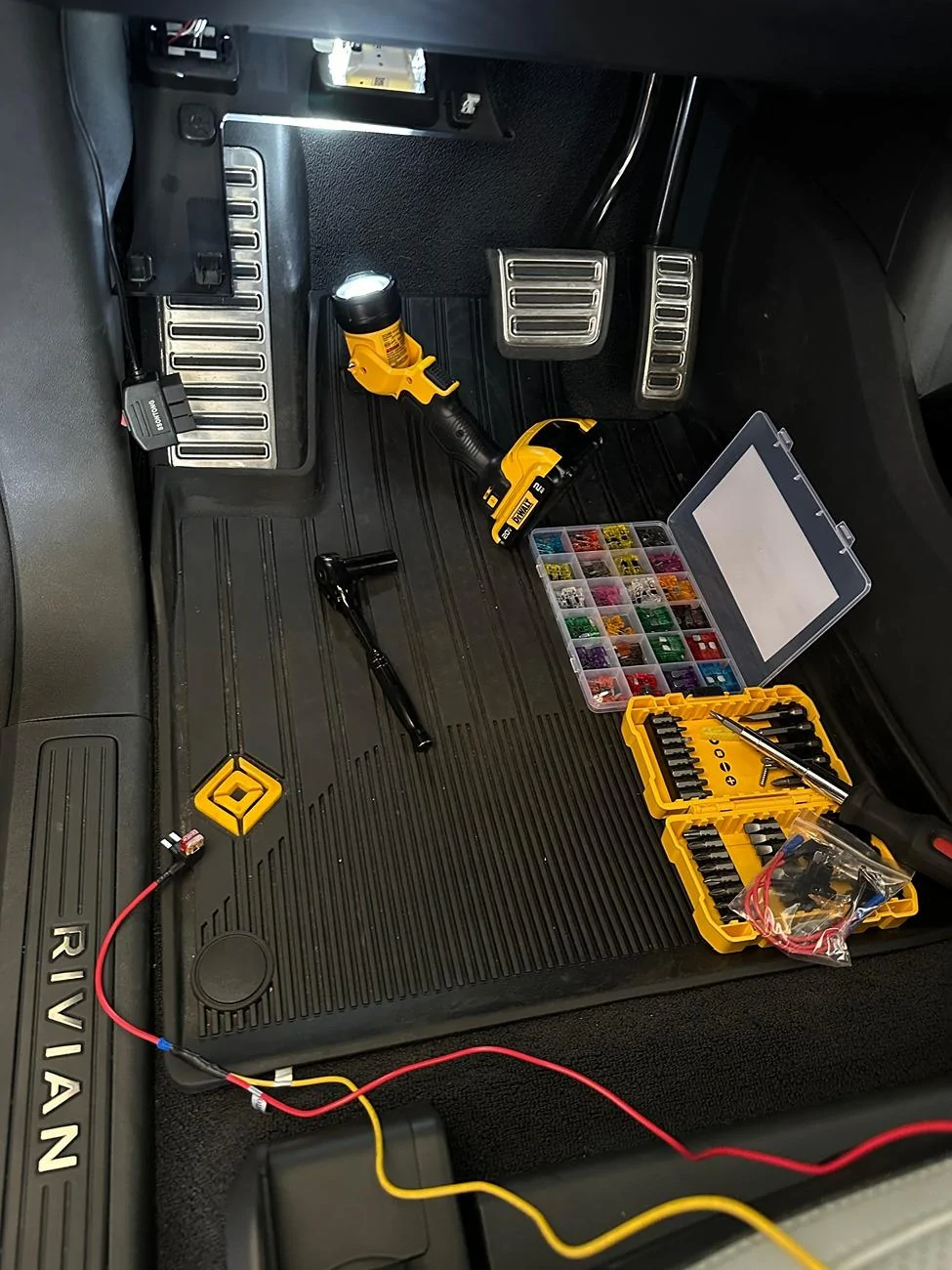
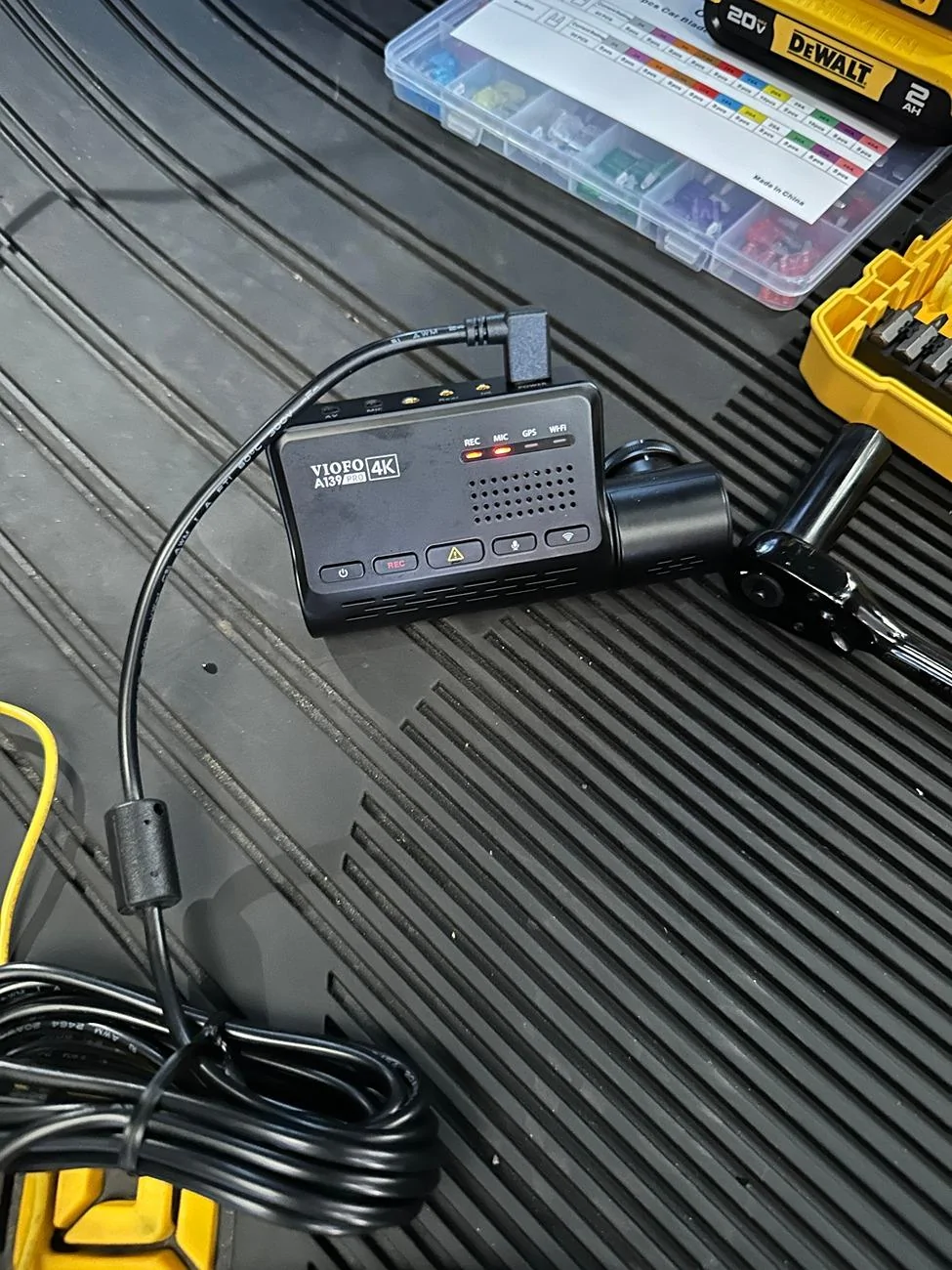
This afternoon's workbench; since I didn't care about parking mode, tied both the battery and ACC wires to the same fuse.
Rivian R1T R1S Front + rear dashcam installed via  mirror tap (DIY tutorial) IMG_3715


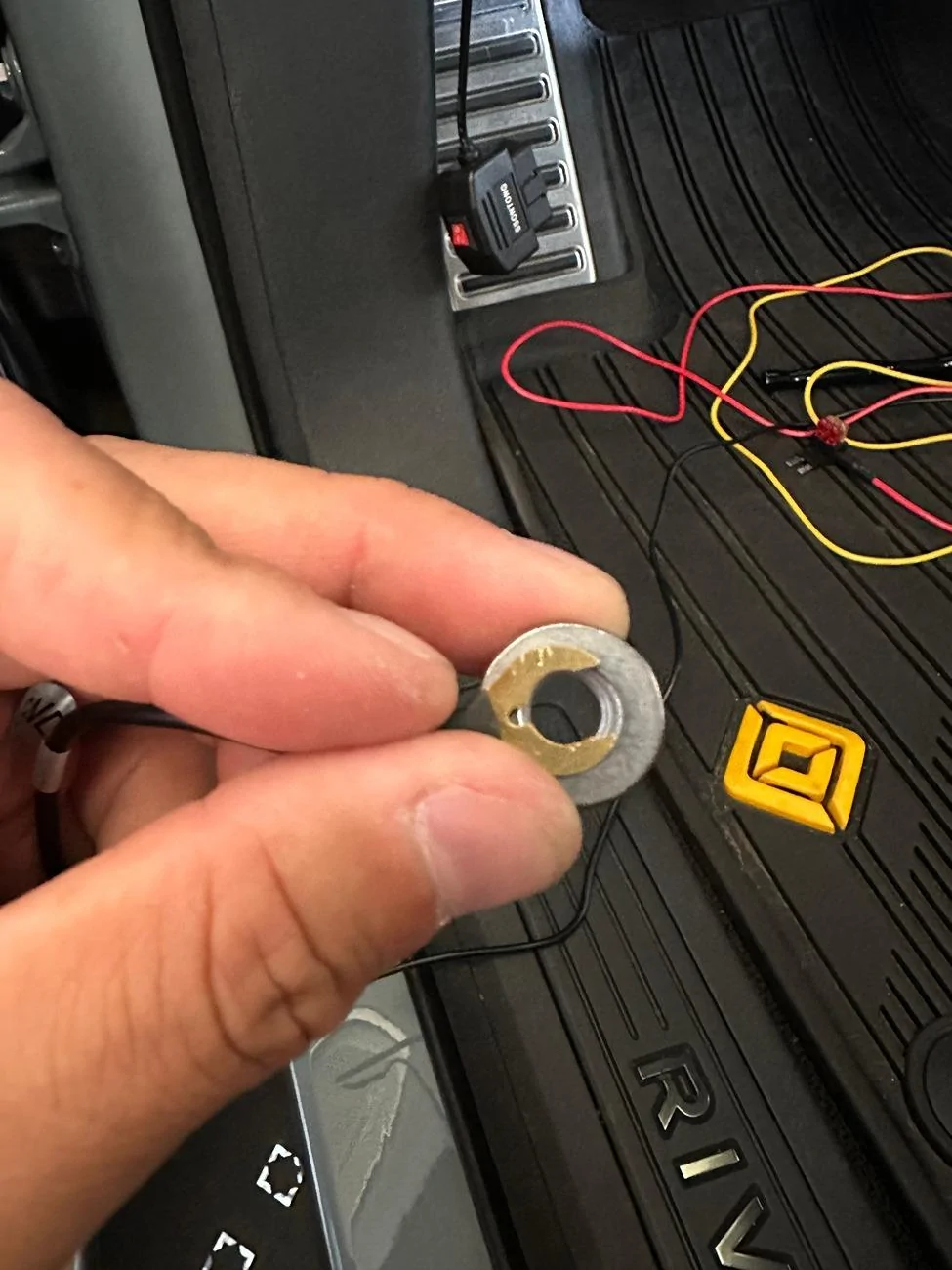
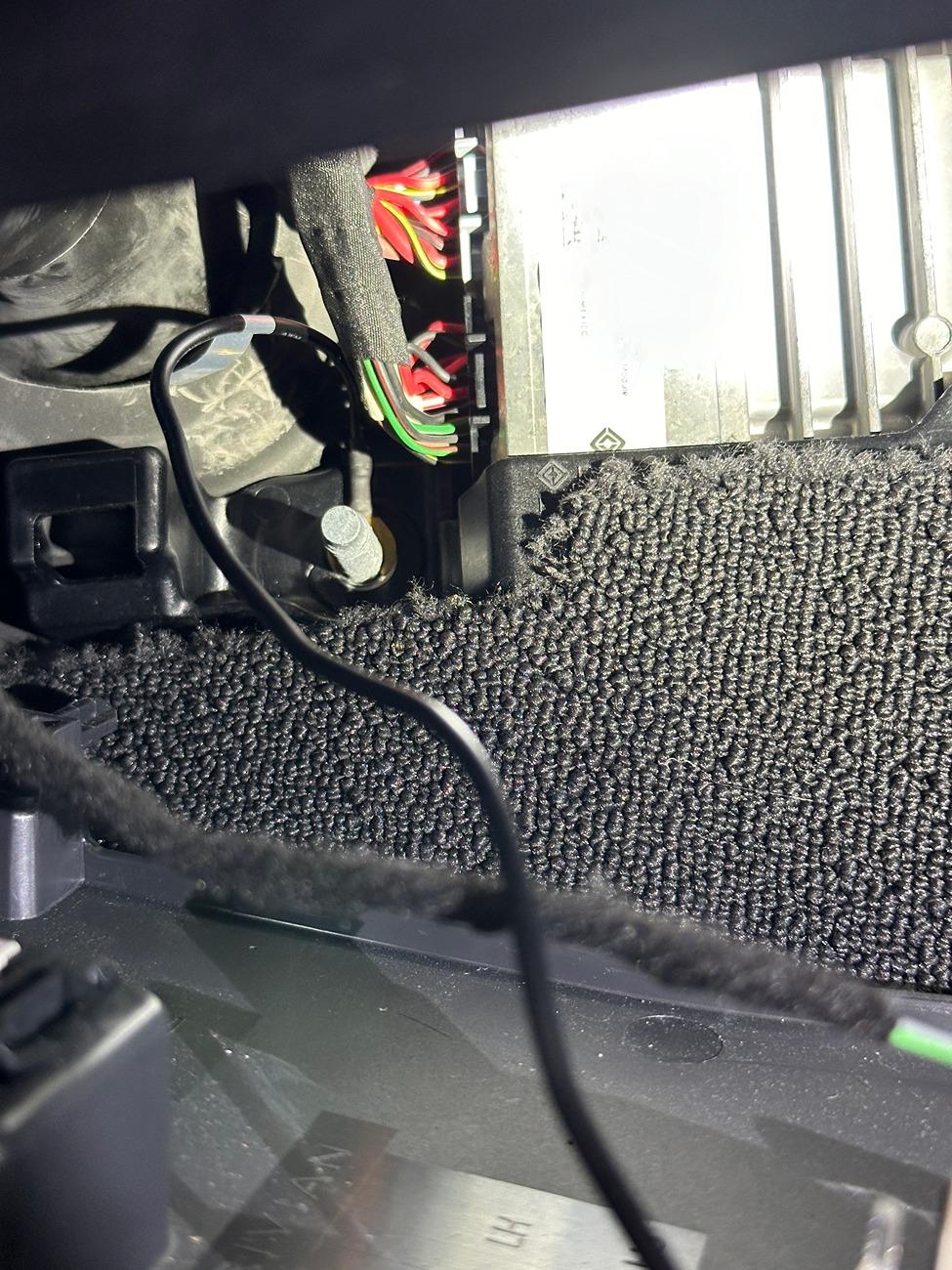
The HK4's ground wire was a pain to work with due to its size, I had to get it onto the bolt between the threads, took quite a bit of force and in the tight space we have to work in, took some effort.
Rivian R1T R1S Front + rear dashcam installed via  mirror tap (DIY tutorial) IMG_3716

Rivian R1T R1S Front + rear dashcam installed via  mirror tap (DIY tutorial) IMG_3717.JPG


Once everything was wired up, did a quick power test:
Rivian R1T R1S Front + rear dashcam installed via  mirror tap (DIY tutorial) IMG_3720


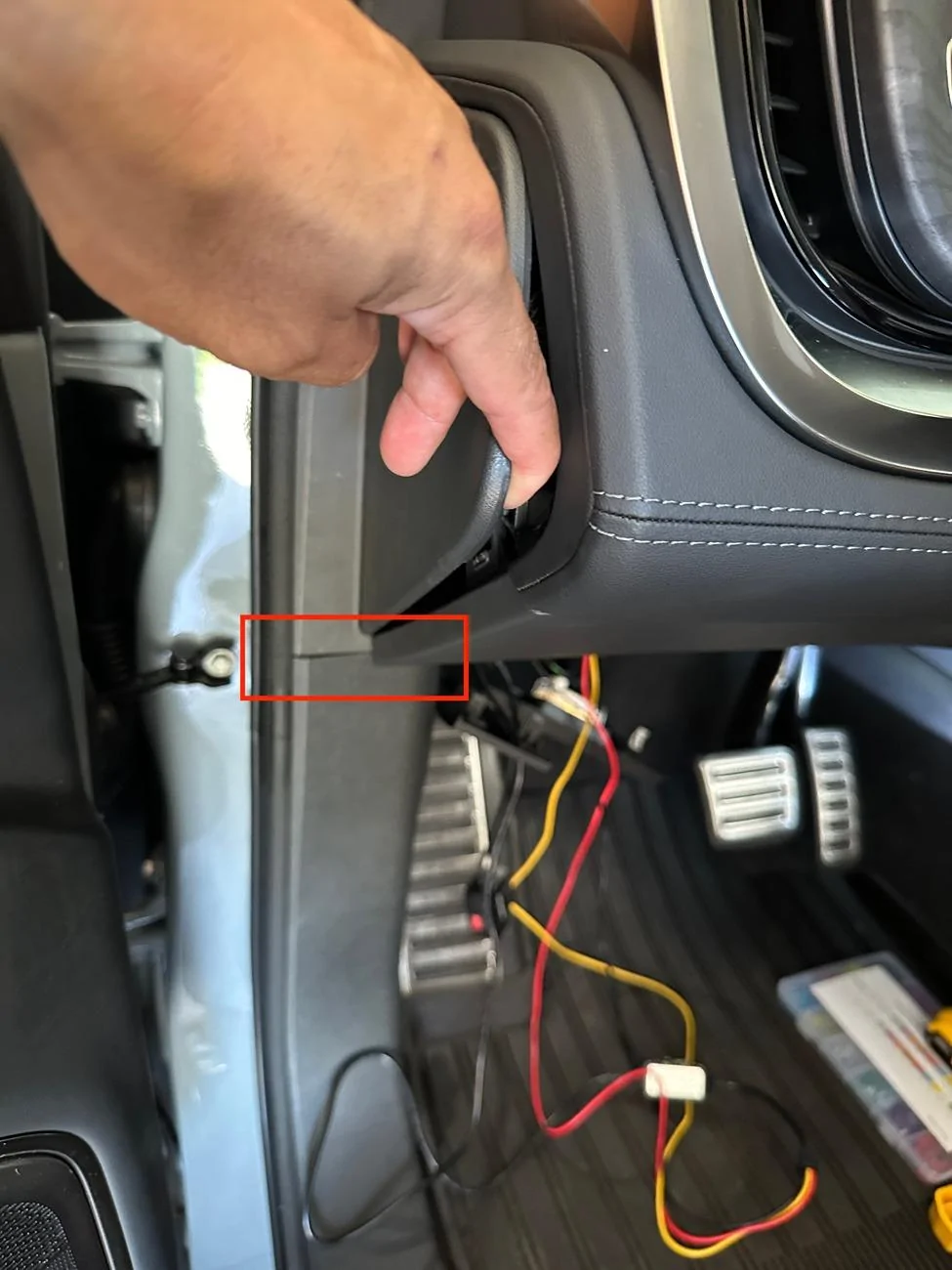
And then tucking all the wire between the trim pieces:
Rivian R1T R1S Front + rear dashcam installed via  mirror tap (DIY tutorial) IMG_3724


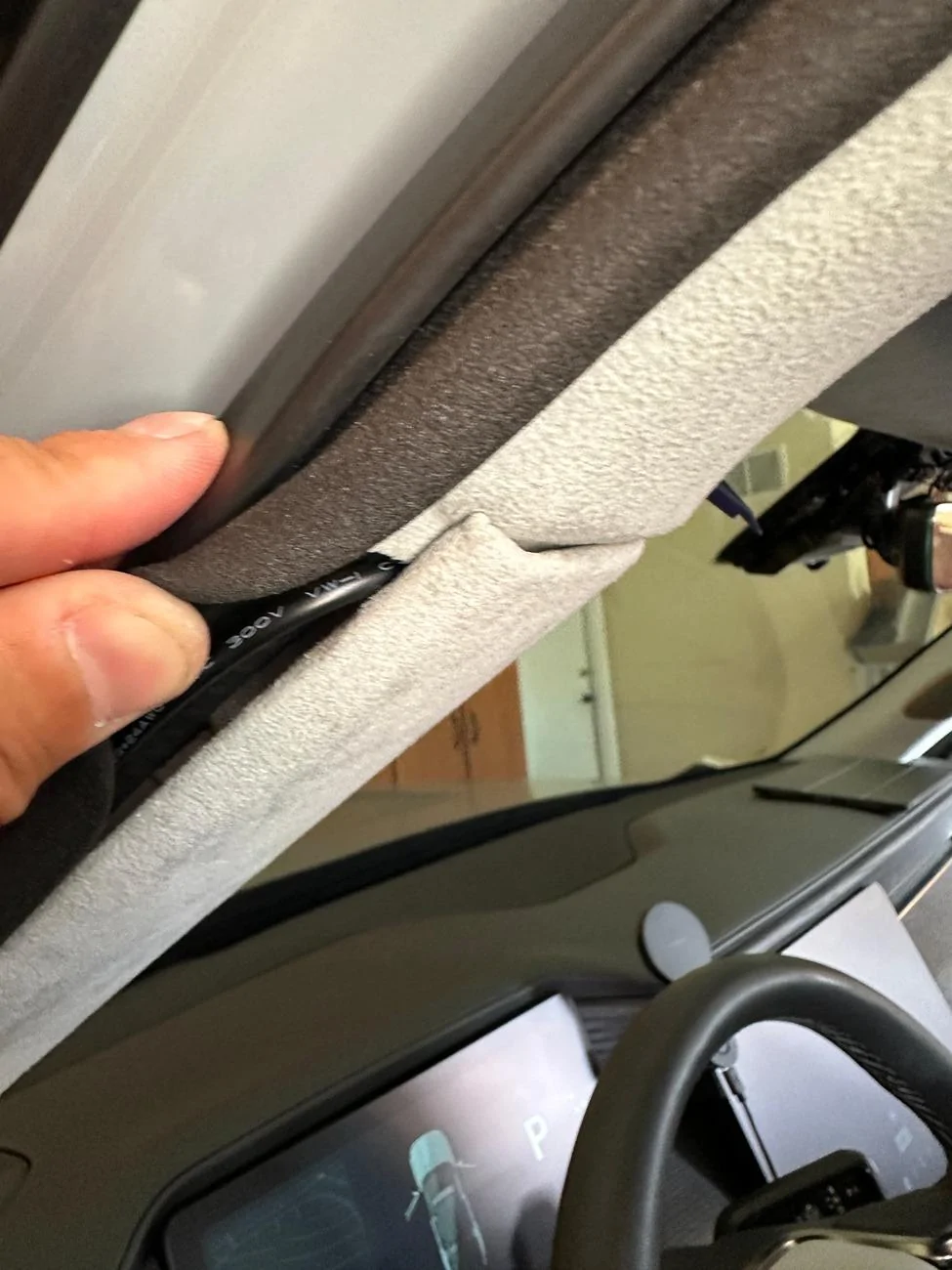
Ran it under the seal and due to the thicker gauge, took a little more effort to get it through the A pillar trim, as always was extra careful to avoid the airbag.
Rivian R1T R1S Front + rear dashcam installed via  mirror tap (DIY tutorial) IMG_3723


Had to flip the USB-C around since it was pinching the rear camera coaxial cable. In a perfect world, would've tapped a passenger side fuse so I wouldn't have to flip the power cable or run it through the rear view mirror panel.
Rivian R1T R1S Front + rear dashcam installed via  mirror tap (DIY tutorial) IMG_3728


Hopefully this holds up unlike my first attempt.
 

Granolander

Active Member
Joined
Jun 14, 2024
Threads
0
Messages
27
Reaction score
2
Location
USA
Vehicles
Rivian R1S
Thanks for such a well detailed chronicle with photos!

I may be overthinking this but what did you mean by “since I didn't care about parking mode, tied both the battery and ACC wires to the same fuse”. Do you mind elaborating?

Also, what phone holder are you using? I can see it on one of the photos.

Thanks!
Sponsored


Top